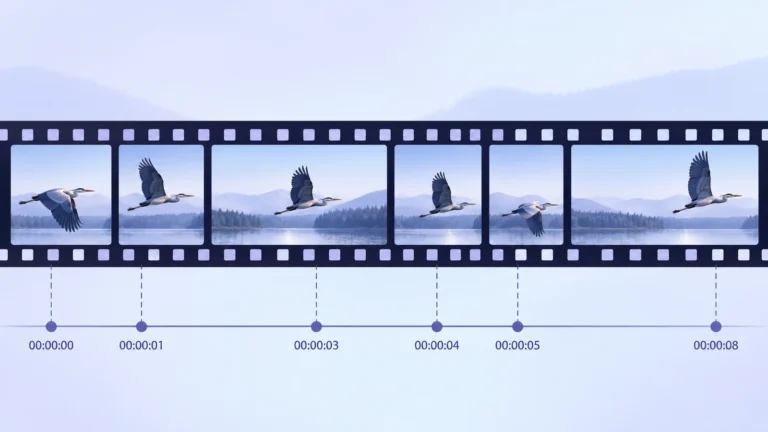
Variable frame rate means that the presentation intervals between video frames are not all equal. It does not automatically mean the recording is broken or edited deceptively. Correct timing information can let a player keep picture and sound aligned, while a workflow that assumes evenly spaced frames may introduce problems. Inspect the original timestamps before interpreting uneven motion.
This guide explains the difference between a rate label and the actual timing of frames. You will work through a small, explicitly invented timeline, learn what to ask an inspection tool and decide whether a constant-frame-rate derivative is needed. The goal is a reproducible timing diagnosis, not a new way to infer an event’s recording date.
Frame rate describes a cadence; timestamps describe positions
A rate such as 25 frames per second suggests a regular spacing of 40 milliseconds if the video is constant frame rate. That is a cadence, not a date. A presentation timestamp identifies where a frame belongs on the media timeline. It may tell you when the player should display a picture without telling you when a camera recorded the event in the outside world.
In a constant-frame-rate sequence, adjacent presentation intervals follow the selected cadence, subject to representation precision. In a variable-frame-rate sequence, those intervals can change. A file can contain a mixture of shorter and longer intervals while still covering the intended elapsed time.
Do not confuse that concept with a changing number displayed by a media player. A player may report an average or a rate inferred from the file. Another tool may expose a nominal stream value. Neither display by itself proves that every adjacent pair of frames is separated by the same amount of time.
Microsoft’s Time Stamps and Durations documentation treats timestamp and duration as important parts of media processing. The useful reading principle is to preserve the relationship between content and time rather than substitute a convenient fixed frame count for information already in the source.
What changes in a variable-frame-rate timeline
Imagine an otherwise simple sequence where one picture is displayed briefly and the next remains on screen longer. The order can stay intact while the timing differs. Variable timing does not require every image to look different. Two frames might show nearly the same scene yet occupy different timeline positions.
Distinguish the frame’s presentation position from its duration. The difference between successive presentation positions is useful for studying intervals, but the final frame has no following frame in that list. Do not invent its duration from that subtraction. If the format or tool supplies a duration, record where it came from and whether it was estimated.
Some formats and decoders represent timing in units tied to a time base. A value needs that scale before you interpret it as seconds. An inspection tool may offer a readable seconds field as well as a raw integer. Keep the field label with the value so another reviewer knows which representation you used.
A jump in motion and a jump in timestamps are different observations. A frame can occupy the expected time while depicting a discontinuity caused by a cut. Conversely, a longer interval can occur without any scene edit. Your first job is to determine which kind of change you are examining.
A short timestamp exercise with deliberately invented numbers
The following timeline is a conceptual arithmetic example. It is not a measurement from a phone, an uploaded video or a DetectVideo AI test. Both rows contain four presentation points. The numbers were chosen to make the difference between equal and unequal intervals visible.
| Sequence | Frame A | Frame B | Frame C | Frame D | Successive intervals |
|---|---|---|---|---|---|
| Equal intervals | 0 | 40 | 80 | 120 | 40, 40, 40 ms |
| Unequal intervals | 0 | 20 | 80 | 120 | 20, 60, 40 ms |
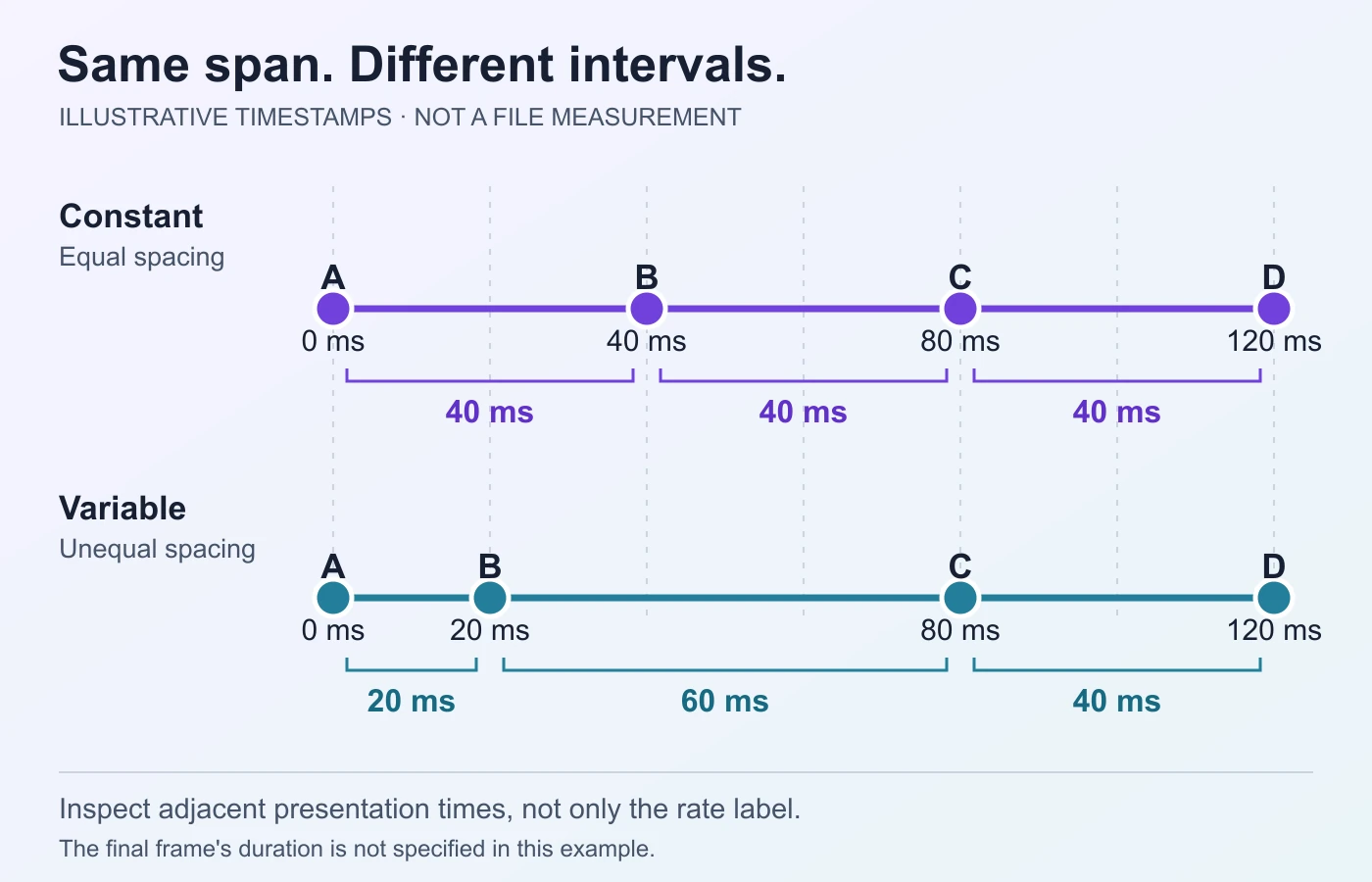
Subtract adjacent positions: B minus A, C minus B and D minus C. The first row has three equal intervals. The second has three different intervals. Their first-to-last span is the same, but their internal cadence is different. An overall span or summary average cannot reveal that distinction on its own.
Now suppose a workflow places the second row’s pictures at evenly spaced positions instead. Frame B moves from 20 to 40 milliseconds; the other illustrated positions happen to remain the same. That changes when one piece of visual content appears. The example demonstrates why timing assumptions matter even when the first and last positions agree.
It does not demonstrate a complete conversion algorithm or an audio-sync failure. There is no audio track in this exercise, and the final frame’s duration is unspecified. A real diagnosis needs the actual source, its full timing and the destination workflow. The accompanying diagram is labeled conceptual for the same reason.
Recording context helps explain a timing pattern
Variable timing can appear in camera or screen-recording workflows, but do not assume every phone or capture utility produces the same pattern. Obtain the actual recording settings and inspect the file. A generic claim about the device family is less useful than the available timestamps from the copy you are reviewing.
For screen capture, ask what the recording intended to preserve: continuous elapsed time, visible screen updates or an edited presentation. A paused desktop, a burst of activity and a system under load may require different investigation. The source application’s behavior and any later export should be part of the record.
For camera footage, distinguish capture behavior from delivery behavior. You may have a messaging-app copy, a proxy or an editor export rather than the file first written by the camera. If you diagnose that derivative alone, say so. Its timing may describe a later processing stage.
Record context without inventing a cause. “This is a screen recording with unequal intervals” is a supported observation if the file and source establish it. “The recording dropped frames because the computer was overloaded” requires additional evidence. Different mechanisms can create superficially similar motion, and the timing data does not always identify the mechanism.
Inspect an original before trusting summary frame-rate fields
Preserve the received file and inspect a working copy. Record the filename, acquisition source, tool version and which video stream you selected. A container may hold more than one stream or an attached image. Selecting the intended stream is part of the diagnosis rather than an administrative detail.
The official FFprobe documentation describes stream and frame inspection, field selection and structured output. A stream summary is a useful starting view; frame-level information lets you examine timing in more detail. Keep any missing or estimated values visible instead of silently replacing them.
An inspection request can look like the following. It reads the named file and asks for timing-related frame fields; it does not modify the source. This is a syntax example, not a claim that this command was run on your media. Installed versions and formats may expose different fields.
ffprobe -v error -select_streams v:0 -show_frames -show_entries frame=pts_time,best_effort_timestamp_time,duration_time,pkt_duration_time -of json "source.mp4"If a requested field is absent, inspect the available frame output and consult the installed documentation. “Best effort” information may be reconstructed by the decoder; label it accordingly. Do not pretend that every readable seconds value is an original camera timestamp or that an unsupported field means the media has no timing information.
Read intervals in presentation order and check anomalies
Work with successive frames in presentation order when studying what a viewer sees. Some encoded video uses a decoding order that differs from display order. A packet list, a frame list and an editor’s displayed frame number therefore may not be interchangeable. Keep the distinction explicit before calculating differences.
For a manageable sample, make a worksheet with the frame identifier, presentation position, any duration and the difference from the previous position. Record the units. Do not take a long list of numbers into a spreadsheet and sort it without retaining which frame each row represented.
Check whether the intervals are consistent, vary locally or contain an unexplained gap. Investigate zero, missing or nonmonotonic values rather than automatically calling them VFR. A problem in the inspected stream or a tool’s interpretation may need separate treatment. One anomalous row is not a complete diagnosis of the recording.
FFmpeg’s vfrdet filter documentation describes a diagnostic based on varying timestamp deltas. Use its result as an aid to inspecting timing, not as an authenticity verdict. A short clean segment also cannot guarantee that the entire recording has the same cadence.
Why variable timing does not necessarily break audio sync
Picture and sound both belong on a media timeline. Unequal video intervals do not inherently require the audio to speed up or slow down. A workflow that respects the source timing can present frames at their intended positions while sound continues according to its own sample timing.
Problems arise when part of the workflow handles time differently from another part, or when the available timing is incomplete or inconsistent. For example, an editing process may interpret a succession of pictures at a forced cadence while another stage preserves audio duration. That is a plausible mechanism, not a universal explanation for every sync complaint.
Describe the symptom before changing anything. Is sound offset by roughly the same amount throughout? Does the mismatch grow with elapsed time? Does it jump at a particular edit? Does the original play correctly in one environment but not another? Those observations point to different next checks.
Microsoft’s media-processing documentation explains preservation and calculation of timestamps and durations within a specific framework. It supports the importance of timing handling, not the assertion that every application behaves identically. Do not blame VFR merely because it is present; demonstrate the actual compatibility problem in the relevant workflow.
Use a symptom-first decision table
The following original table helps select a diagnostic step. It does not assign a cause from one symptom. Compare the original and the working copy before making a conversion, and retain the relevant result in your notes.
| Observation | What to inspect next | What not to assume |
|---|---|---|
| A similar offset throughout | Track start positions and consistent latency in the workflow. | That a different frame rate will necessarily solve it. |
| Mismatch grows over time | Duration and timing interpretation at each processing stage. | That VFR is the only possible cause. |
| A jump at an edit | Timeline continuity, join behavior and source versions. | That all frames in the original were irregular. |
| Only the editor has a problem | Import interpretation and supported source workflow. | That the camera file is unusable everywhere. |
| Uneven motion without audio mismatch | Frame intervals, content motion and playback conditions. | That there must be an audio defect or deceptive edit. |
A useful test has a defined comparison: the same source section, a known processing path and an observed outcome. Avoid changing frame rate, audio offset and several export options together. If the symptom improves, you would not know which change mattered. Save the candidate as a derivative and alter one relevant variable at a time where practical.
Convert to constant frame rate only for a reason
You may need a constant-frame-rate copy because a destination requires it or because a repeatable compatibility problem was demonstrated. That derivative can be useful without becoming the original evidence. Record the target cadence and preserve the unchanged source alongside it.
The FFmpeg fps filter documentation states that it makes a selected constant frame rate by duplicating or dropping frames as needed. That is not the same operation as generating motion-interpolated images. Understand which operation your workflow performs before describing the result.
HandBrake’s frame-rate documentation likewise distinguishes variable, constant and peak frame-rate choices. That page is labeled a draft, so confirm the relevant option in your installed version before relying on it. Labels that sound similar can have different purposes. Read the selected option’s actual meaning rather than assuming that a target rate makes every workflow identical.
After conversion, compare the relevant beginning, middle, end and any troublesome joins or events. Inspect picture timing, audio relationship and duration. A smooth-looking beginning does not establish that later sections survived correctly. If the conversion fails your intended use, keep the failed derivative separate and revisit the diagnosis rather than overwriting the source.
Keep timing evidence separate from recording dates and AI claims
A presentation timestamp is a media position, not an automatically verified real-world clock. If your question is when footage was recorded, the existing video timestamp guide covers date fields, timezones and external chronology. Do not use this guide’s millisecond exercise to make a claim about capture date.
For the file’s technical description and recorded processing clues, use the existing video metadata guide. A changed frame-rate representation can indicate a different workflow without revealing every edit or the reason for it. Keep container fields, decoded timing and the publisher’s account distinct.
Uneven intervals also do not establish AI generation. Conventional capture, edits or format processing can change motion. The existing compression-artifact guide explains another family of ordinary visual effects. Do not merge cadence, compressed texture and content generation into one generic “fake” signal.
If there is a genuine manipulation question, combine timing with source and content evidence. The video forensics guide covers that broader examination. Your timing note should remain narrow enough to be useful within it: the inspected copy, the observed interval pattern and any limitations of the tooling.
Build a reproducible comparison for a troublesome clip
If you need to ask an editor or software maintainer for help, provide a bounded case they can reproduce. Identify a short relevant span in a working copy, preserving the full original separately. Describe what the source should show and the operation that produces the problem. “My video is out of sync” is less useful than a named source, import path and observable mismatch.
Choose a visible event with a clear relationship to sound if one is genuinely present. A recorded clap can be useful; a distant impact may include a natural sound delay, and dubbed speech may not provide a trustworthy capture reference. Do not assume a mouth position proves the exact instant a syllable should start. Explain why you chose the event and what it can establish.
Compare the unchanged source’s playback with the editor view and an exported derivative. Keep the selected event and playback conditions consistent where practical. If the problem appears only after export, record the export settings and inspect that stage. If it is already present in the source, investigate source timing and acquisition history rather than blaming a later conversion.
Repeat the comparison at another relevant position, preferably where the reported symptom differs. A similar offset at both positions suggests a different investigation from a steadily increasing mismatch. Write the observations down without treating the pattern as a diagnosis on its own. If a waveform or timeline readout supplies a measurement, retain its units and the view used.
A support packet should include the source identifier, available timing report, application version, exact steps, a labeled derivative and a concise expected-versus-observed description. Do not send private footage unnecessarily; use an authorized minimal sample when possible. This makes further work targeted and helps prevent an expert from “fixing” the wrong version while destroying the very timing evidence you wanted to understand.
A practical closeout checklist
Finish the investigation with a short timing record, not simply “VFR detected.” Include the relevant stream, units, tool and version, inspected span, observed intervals and the symptom you were trying to resolve. If you created a derivative, name its target cadence and distinguish it from the unchanged original.
- The original source is preserved and the examined copy identified.
- Frame-rate summaries are kept separate from frame-level timing.
- Presentation positions and duration fields retain their labels and units.
- Missing, reconstructed or unusual values are not hidden.
- The actual symptom is checked before and after any conversion.
- Timing observations are not overclaimed as recording-date or AI proof.
If the original plays and edits correctly in the intended workflow, there may be no problem to fix. If a failure persists, provide the preserved sample and your diagnosis to the relevant software or media expert. Variable frame rate is a property to understand. Its practical importance comes from what your particular playback, editing or analysis process does with time.
Questions about variable frame rate
Does variable frame rate always cause audio-sync problems?
No. A workflow that respects the source timing can keep picture and sound aligned. Diagnose the actual symptom and timing handling rather than assuming that VFR is a defect.
How do I identify variable frame rate in an original file?
Inspect the intended video stream’s frame-level presentation information and compare successive intervals. Summary labels or average rates are starting clues, not a complete description of every frame.
Is a timestamp gap proof that someone removed footage?
No. It is an observation that needs the source, format and workflow context. Preserve the file and investigate timing alongside the visible sequence and other evidence.
Does conversion to CFR restore missing motion?
A conventional conversion can duplicate or drop images to fit a cadence. It does not recover an event that was never captured. Motion interpolation is a separate operation with its own limitations.
Can I infer capture date from presentation timestamps?
Not from media positions alone. Recording-date verification needs the relevant date fields, timezone interpretation and supporting source evidence. Do not confuse elapsed playback time with calendar time.