
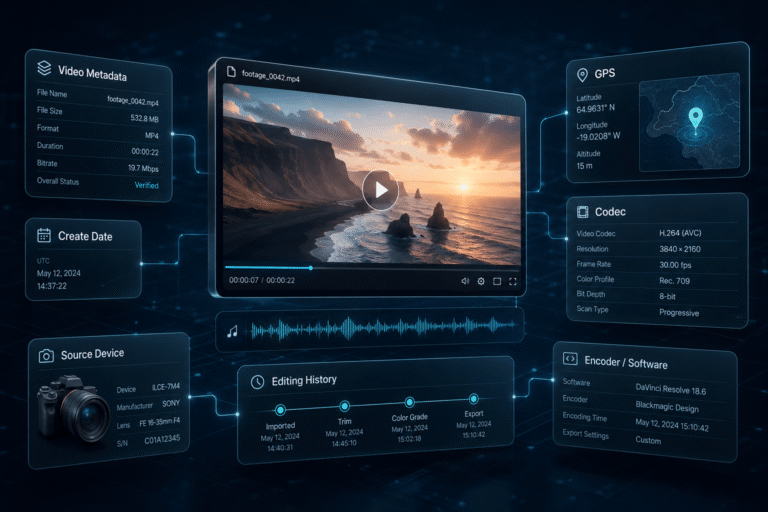
Video metadata is information stored with or about a video file that describes its structure, timestamps, codecs, dimensions, tracks, software, and sometimes device or location details. It can help you understand where a file may have come from, whether it was re-encoded or exported, and which technical characteristics deserve closer investigation.
Metadata is useful evidence, but it is not a truth certificate. A creation date can describe when a movie container was created rather than when the depicted event occurred. A software tag can show that an application wrote or encoded the file without revealing exactly what the editor changed. Missing GPS does not mean a video lacks a real capture location. The value comes from interpreting multiple fields together and comparing them with the source and claim.
What Is Video Metadata?
Video metadata is data that describes a video asset rather than the visible scene itself. Some metadata is required for playback, while other fields are optional and may describe authorship, capture, location, software, or workflow details.
A single video file can contain several layers of information:
File format, duration, creation or modification fields, titles, encoder tags, chapters, and other information stored by the container.
Codec, resolution, frame rate, pixel format, audio sample rate, language, timecode, and tags associated with individual video or audio streams.
Depending on the device and format, this can include camera make, model, GPS coordinates, recording-related dates, orientation, or descriptive fields.
File-system creation, modification, access dates, filename, and directory information maintained by the operating system rather than necessarily embedded by the camera.
FFmpeg’s ffprobe documentation makes the container and stream distinction explicit: metadata tags stored in the container or individual streams are reported in their corresponding format or stream sections. See the official ffprobe documentation.
Video Metadata Is Not the Same as EXIF
People often use “EXIF data” as a generic label for all media metadata. That is imprecise for video.
EXIF is one metadata system strongly associated with still images. Video formats such as MOV and MP4 commonly rely on QuickTime or ISO Base Media File Format structures, plus format-specific metadata, XMP, timed metadata, device maker notes, or other tag families.
ExifTool’s QuickTime documentation lists video-related tags such as camera model, GPS coordinates, software, encoder information, orientation, dates, and many types of timed GPS metadata. The exact fields available depend on the recording device, application, container, and subsequent processing. See the ExifTool QuickTime tag reference.
So if you search for “video EXIF,” the practical task is usually broader: inspect all relevant metadata groups instead of looking only for an EXIF block.
The Three Histories Hidden Around a Video File
Metadata becomes easier to interpret when you separate three different histories.
| History | Main question | Possible evidence |
|---|---|---|
| File history | What happened to this particular file? | File-system dates, container creation fields, encoder, software, re-encoding clues |
| Media history | How was the underlying video captured, transformed, or exported? | Device tags, stream parameters, software tags, provenance records, source comparison |
| Claim history | What does the uploader say the video shows? | Post date, caption, event date, location claim, identity claim, external reporting |
A metadata field belongs mainly to file or media history. It does not automatically verify the claim history.
The Date Problem: A Video Can Have Several “Creation” Times
Timestamps are among the most useful and most misinterpreted video metadata fields.
A video can expose several dates that look similar but represent different layers:
- operating-system file creation date
- operating-system file modification date
- QuickTime movie creation date
- QuickTime movie modification date
- track creation and modification dates
- media creation and modification dates
- device-specific recording or content creation date
- GPS-related date and time
- export or encoding date written by an application
Apple’s QuickTime file-format documentation defines the movie header’s creation time as the calendar date and time for the movie atom. The same header also contains a modification time. Apple recommends UTC for these fields and notes that older QuickTime implementations were not always consistent about time zones. See Apple’s QuickTime movie header specification.
This technical definition is important: a container creation timestamp should not be automatically described as the moment the camera recorded the real-world event.
The Four Clocks to Compare
When the caption, uploader, or investigator says the real-world event was recorded.
Dates stored inside the video container, tracks, timed metadata, or camera-specific fields.
Dates maintained by the current operating system for this copy of the file.
When the video or a matching copy first becomes visible on a platform, website, archive, or other external source.
Agreement between these clocks can support a timeline. Contradictions can reveal that you need more investigation. No single clock should be treated as definitive without understanding how it was generated.
Why File Creation Date Is Often a Weak Origin Signal
The operating system may assign a new file creation date when a video is downloaded, copied to another disk, restored from backup, exported from an application, or otherwise recreated as a new file-system object.
That means a file created on your laptop today may contain video recorded years earlier.
System dates are still useful. They tell you something about the current copy. They are simply not the same as an embedded capture timestamp or an independently verified event date.
QuickTime CreateDate and ModifyDate Need Context
MOV and many MP4 files can contain QuickTime creation and modification fields at the movie, track, and media level. ExifTool exposes these as tags such as CreateDate, ModifyDate, TrackCreateDate, and MediaCreateDate.
The challenge is interpretation. A fresh camera file may carry values closely associated with capture. A video editor or transcoder may produce a new container whose creation time reflects the export. Metadata can also be modified independently of the visible content.
ExifTool’s own documentation recommends checking all available date and time tags rather than assuming a single tag exists across MOV and MP4 files. Its FAQ suggests:
exiftool -time:all -a -G1 -s video.mp4See the ExifTool FAQ on video date fields.
Time Zones Can Create False Contradictions
Two timestamps that differ by a few hours are not automatically evidence of editing.
QuickTime time fields may be stored or interpreted as UTC, while other fields can include a local offset or be displayed according to the current computer’s time zone. Older implementations and device-specific tags can behave differently.
Before comparing times:
- identify the metadata group the timestamp comes from
- check whether the field includes a time-zone offset
- determine whether the tool displays raw UTC or converts it
- compare dates only after normalizing the relevant time zones
A suspicious timestamp becomes meaningful only after you rule out a simple time-zone interpretation issue.
Can Video Metadata Show Where a Video Was Recorded?
Sometimes. Some video files contain GPS coordinates, altitude, camera direction, location name, or timed location data. ExifTool documents many QuickTime location tags and timed GPS formats, including latitude and longitude fields.
If GPS metadata is present, treat it as a location claim stored in or associated with the file. Then verify it against the visible scene.
Useful cross-checks include:
- street names and road geometry
- buildings and landmarks
- terrain and skyline
- weather and lighting
- language and signage
- other independently sourced footage from the same event
GPS metadata can support geolocation, but GPS metadata alone is not proof of where the visible event occurred. Metadata fields can be absent, removed, copied, or changed.
Camera Make and Model Can Help, but Do Not Authenticate the Scene
A file may contain camera make, model, firmware, serial-related data, or maker-specific metadata. These can help answer questions such as:
- Was the file produced by a device family consistent with the claimed source?
- Does the metadata match other original files from the same camera?
- Is a supposed phone recording carrying metadata more typical of an editing or transcoding workflow?
But a camera-model field is not cryptographic proof that the camera captured the visible scene. It is ordinary metadata and must be interpreted with the rest of the evidence.
Software and Encoder Tags: The Most Misused Editing Clue
Video files can contain tags that name software, an encoder, or an encoding library. MediaInfo’s metadata mapping includes fields such as Encoded_Application and Encoded_Library, while QuickTime metadata can include software and encoder tags. See the MediaInfo metadata tag reference.
These fields can be valuable, but the conclusion must be precise.
| Metadata observation | Reasonable interpretation | Overclaim to avoid |
|---|---|---|
| An editing application is named | The current file may have been written, exported, or processed by that application | “The scene was manipulated” |
| FFmpeg or another encoder appears | The file was likely encoded or remuxed through that software or library | “The video is fake” |
| No software tag is present | No useful software tag was found in the inspected metadata | “The video came directly from the camera” |
Exporting, trimming, transcoding, changing a container, or adding subtitles can all produce a new file without falsifying the underlying event.
Codec, Resolution and Bitrate Form a Technical Fingerprint
Technical stream metadata can reveal how the current file is packaged and encoded:
- container format
- video codec and profile
- width and height
- frame rate
- bitrate
- pixel format
- color characteristics
- audio codec and sample rate
- number and type of streams
- duration and time base
These values rarely answer “Is this real?” directly. They are most powerful for comparison.
For example, if ten supposed original files from the same camera have a consistent stream structure but one copy has a different codec, resolution, encoder, and timestamp pattern, that difference supports the conclusion that the outlier went through a different processing path. It does not identify what editorial changes occurred.
How to Check Video Metadata With MediaInfo
MediaInfo is useful when you want a readable technical overview without a command line. Open the video and inspect the general, video, audio, text, and menu or chapter sections that are available for the file.
Prioritize:
- format and format profile
- duration
- encoded application or writing application
- encoded library
- video codec
- resolution
- frame rate mode and frame rate
- bitrate
- audio properties
- date fields if present
MediaInfo is excellent for technical structure. For deeper tag-group analysis, use ExifTool.
How to Check All Video Metadata With ExifTool
ExifTool is particularly useful because it identifies the metadata group for each field. That matters when several fields share names such as CreateDate or ModifyDate.
To inspect a detailed list:
exiftool -a -G1 -s video.mp4The flags are useful because:
-ashows duplicate tags-G1shows metadata group names-sshows concise tag names
To focus on dates:
exiftool -time:all -a -G1 -s video.mp4When investigating QuickTime UTC behavior, ExifTool also supports its QuickTimeUTC API option. Use it deliberately and document how your tool displayed the time rather than silently converting timestamps during forensic comparison.
How to Check Video Metadata With ffprobe
ffprobe is useful when you want structured container and stream information that can be inspected manually or processed in scripts.
A readable JSON overview:
ffprobe -v quiet -print_format json -show_format -show_streams video.mp4To focus on metadata tags:
ffprobe -v quiet -of json -show_entries format_tags:stream_tags video.mp4FFprobe can also report timecode when the relevant format stores it in supported locations, including MOV timecode tracks and format metadata in some other video formats.
Do Not Expect Every Tool to Show the Same Fields
Different tools parse different metadata families, label fields differently, and make different choices about hidden, duplicate, vendor-specific, timed, or embedded metadata.
That means:
- Finder or Windows Properties may show a simplified subset
- MediaInfo may emphasize technical stream and container properties
- ExifTool may expose many additional metadata groups and proprietary tags
- ffprobe may expose tags according to FFmpeg’s demuxer and stream model
If an important field appears in one tool but not another, investigate the field’s actual metadata group before calling the results contradictory.
What Metadata Can Tell You About Editing History
Ordinary video metadata usually does not provide a complete chronological edit log.
It may contain clues such as:
- software or encoder names
- newer container creation dates
- changed resolution or frame rate
- codec changes between versions
- new or removed audio streams
- different titles, comments, or descriptive fields
- missing device-specific fields after a re-export
These can support an inference that the file passed through a processing step. They normally cannot tell you every operation that occurred inside an editor.
To reconstruct actual version history, compare multiple copies and combine metadata with source tracing. The video provenance guide covers that broader lineage question.
Example: A Video With an Editor Tag
Imagine a file that contains:
- a QuickTime creation date after the claimed event
- an editing application in a software tag
- H.264 video at 1080p
- no GPS fields
The correct conclusion is not “the event is fake.”
A defensible conclusion is:
The inspected copy appears to have been written or exported through an editing workflow after the claimed event. The metadata does not establish what edits were made or whether the depicted event itself is authentic.
That wording separates file history from event verification.
Example: GPS and Camera Metadata Match the Claim
Now imagine a file with:
- camera make and model
- GPS coordinates near the claimed location
- embedded date and time consistent with the claimed period
- stream parameters consistent with other source files
This is useful supporting evidence. It increases consistency between the file and the claim.
It still does not prove the scene was captured exactly as described. Strong verification would compare visible geography, source identity, publication history, and other independent evidence.
Example: The Reposted Copy Has Almost No Useful Metadata
A downloaded or redistributed video may contain sparse metadata or metadata that mainly describes the latest encoding step.
This does not mean the original recording had no camera or location metadata. You are inspecting the current copy, not every prior version.
When metadata is sparse, shift to other evidence:
- find an earlier copy
- extract distinctive frames
- compare visible source marks
- search captions and usernames
- inspect longer or higher-quality versions
The video frame extractor guide explains how to turn a clip into useful stills for source tracing.
Can Video Metadata Be Changed?
Yes. Many ordinary metadata fields can be edited, rewritten, removed, or regenerated by software. ExifTool’s QuickTime documentation explicitly identifies numerous writable tags, including software, encoder, GPS coordinates, make, and model fields in supported locations.
This is why ordinary metadata should be treated as evidence that needs provenance, not as self-authenticating evidence.
A timestamp that looks perfect is not automatically more trustworthy than a missing timestamp. You need to know who or what produced the field, how it relates to the asset, and whether there is any tamper-evident mechanism behind it.
Ordinary Video Metadata vs C2PA Provenance
This distinction is central.
| Ordinary metadata | C2PA provenance |
|---|---|
| Stores technical or descriptive information in normal file structures | Uses C2PA manifests containing assertions, claims, signatures, and content bindings |
| Many fields can be edited without a cryptographic trust chain | Designed to make associated provenance claims cryptographically verifiable and tamper-evident |
| May contain date, GPS, software, camera, title, or encoder information | Can record creation, actions, ingredients, AI disclosure, and other provenance information when a compatible workflow provides it |
| Presence does not establish who wrote the field | Validation includes the claim signature and associated trust model |
The current C2PA 2.4 specification describes provenance as a set of assertions bound into signed manifests and explicitly says the standard is designed for cryptographically verifiable information rather than value judgments about whether the content is “good” or “bad.” See the C2PA 2.4 technical specification.
For the narrower technical topic, use the C2PA metadata guide. For the user-facing verification layer, see the Content Credentials guide.
Metadata Is Not a Truth Score
A file timeline, processing path, technical structure, device association, possible location, and differences between versions.
That the visible event happened, the caption is true, a person is correctly identified, no content was manipulated, or the file is the original camera recording.
A Better Video Metadata Verification Workflow
- Preserve the best available file. Work from the original or highest-quality copy you can obtain. Avoid overwriting it.
- Record the source context. Save the URL, uploader, caption, publication time, and claim before focusing on metadata.
- Inspect with more than one tool when the case matters. MediaInfo, ExifTool, and ffprobe expose different views of the file.
- Separate system dates from embedded dates. Do not mix file-system creation time with QuickTime or camera-specific fields.
- Normalize time zones. Resolve UTC and local-time behavior before calling timestamps inconsistent.
- Look for processing clues. Software, encoder, codec, resolution, frame rate, and stream changes can reveal a different file-generation path.
- Cross-check device and location fields. Compare camera and GPS data with visible content and external evidence.
- Check for provenance. If Content Credentials or other signed provenance exists, evaluate it separately from ordinary tags.
- Verify the actual claim. Use source tracing, context, chronology, and media analysis where needed.
The full multi-evidence process is covered in the video verification guide.
When Metadata Contradicts the Visible Story
Metadata becomes especially valuable when it creates a testable contradiction.
Examples include:
- a video claimed to be a direct phone upload but the current file contains an editor or transcoder tag
- a location field points to a different country than the caption
- embedded dates predate or postdate the claimed timeline in a way that cannot be explained by time zones or export
- the file’s stream structure differs substantially from known originals from the same source
A contradiction is a reason to investigate. It is not permission to skip the explanation.
When Metadata Agrees With the Story
Agreement is supporting evidence, not final proof.
If camera, GPS, dates, stream properties, source history, and visible content all align, the combined case becomes stronger because independent evidence families are consistent. But ordinary metadata remains editable, and a convincing set of tags can be attached to misleading content.
Use agreement to increase confidence proportionally, not to convert a file into unquestionable evidence.
Where DetectVideo AI Fits
Metadata analysis is one layer of video verification. It is particularly useful for understanding the file you actually received and for identifying technical or workflow clues that can guide the next step.
If the unresolved question concerns the video itself, such as possible AI generation, temporal manipulation, face alteration, audio-video inconsistency, or other forensic signals, metadata should be combined with analysis of the media content rather than treated as a substitute for it.
DetectVideo AI can contribute a technical analysis layer for supported video, while source verification, ordinary metadata interpretation, and signed provenance remain distinct evidence categories.
Key Takeaway
Video metadata is most valuable when you know exactly what each field describes.
Creation dates are not all recording dates. File-system timestamps are not container timestamps. Software tags can reveal processing without revealing the edit. GPS can support a location without proving the scene. Codec and stream properties can distinguish versions without authenticating the claim.
Read metadata as a set of file and workflow clues. Then compare those clues with source history, visible evidence, provenance, and the claim you are actually trying to verify.
FAQ About Video Metadata
How do I check video metadata?
Open the file with a metadata tool such as MediaInfo, ExifTool, or ffprobe. Check container information, streams, date fields, software or encoder tags, device metadata, GPS data, and any provenance information that is available.
Can video metadata tell when a video was recorded?
Sometimes it can provide a strong recording-time clue, especially in an original camera file with device-specific timestamps. But fields such as QuickTime CreateDate describe the media container or associated structure and can also be regenerated during export, so the field must be interpreted in context.
Can video metadata show where a video was recorded?
Some video files contain GPS coordinates or other location metadata. If present, compare those coordinates with visible geographic evidence. Missing GPS does not mean the location is false, and present GPS does not prove the visible scene occurred there.
Does an Adobe, FFmpeg, or editor tag mean the video is manipulated?
No. It supports the conclusion that the current file passed through that software or encoding workflow. The operation could have been trimming, transcoding, resizing, subtitle insertion, ordinary editing, or a more substantial change. The tag alone does not identify the edit.
Can video metadata be faked or edited?
Yes. Many ordinary video metadata fields are writable. This is why important metadata claims should be cross-checked and why cryptographically signed provenance systems such as C2PA are different from ordinary tags.
What metadata is stored in an MP4 video?
An MP4 can contain container and stream information such as duration, codecs, dimensions, frame rate, language, timecode, titles, dates, encoder details, and other metadata. Some devices and applications also store camera, GPS, orientation, or vendor-specific information.
What is the difference between metadata and provenance?
Metadata is information associated with the asset. Provenance is the broader history of where an asset came from and how it changed. Ordinary metadata can contribute to provenance research, while systems such as C2PA add signed, tamper-evident provenance structures.
Why does my video have several creation dates?
The operating system, container, individual tracks, media streams, camera, GPS system, and editing application can each maintain different date fields. They may describe different events in the file’s history and may use different time-zone conventions.
Does missing metadata mean a video is fake?
No. Metadata may be absent because the recording device never stored it, a later workflow removed it, the current copy was re-encoded, or the inspection tool does not expose that metadata family. Missing metadata is not an authenticity verdict.