
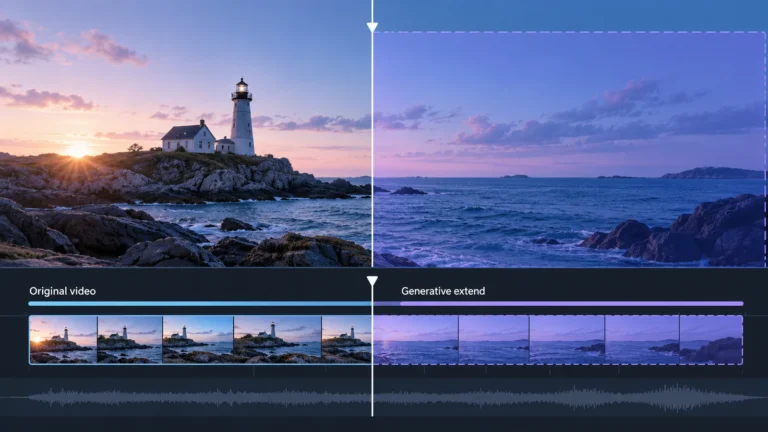
Generative Extend creates additional video frames or ambient audio at a clip boundary. In Adobe Premiere, it can help an editor fill a short timing gap, but the new section is generated rather than recovered from a camera recording. Keep that distinction visible in your project, your export notes and any claim you make about the scene.
This guide helps you decide whether an extension is appropriate, identify where recorded material ends, and prepare a review another editor can follow. The worked example and diagram are conceptual illustrations, not results from a Premiere experiment. We use Adobe’s current documentation for product facts and an original boundary worksheet for the editorial decisions.
What is being extended?
A clip boundary is where the media available to your edit begins or ends. Sometimes you only trimmed an existing recording: moving the edit point may reveal more captured frames. At other times, the underlying file really ends there. These situations look similar in an editing timeline but have very different implications for what additional footage could represent.
Adobe’s Generative Extend overview describes a Firefly-powered cloud feature that adds material at the beginning or end of a clip. The original media remains unchanged, while generated content becomes part of a new project clip. An internet connection is required.
The added material can solve a creative timing problem without answering a factual question. If a camera stopped before a person reacted, a plausible continuation cannot establish the person’s actual reaction. If a scenic shot ended early, extra motion cannot tell you what passed in front of the lens afterward. Treat the added interval according to how it was produced.
This is a narrower task than making an entire synthetic sequence. Our AI-generated video guide covers the broader production categories. Here, the concern is the boundary between a real source interval and a generated continuation inside one edited clip.
Check the source before requesting new frames
Begin with the recording, not the visible gap in the sequence. Find the original file and inspect the relevant edge in a source view. Determine whether there are unused captured frames beyond your current edit point. An extension decision made before this check may generate material that you already possess in a less convenient part of the project.
Write down what is missing. “The shot is too short” is vague. “The outgoing shot ends before the transition can finish” describes an editing need. “We do not know how the person responded” describes an evidence gap. A generation tool may help with the first task; it cannot convert the second gap into a recovered observation.
Consider whether a conventional edit would communicate the same idea more clearly. You might shorten a transition, select a different recorded take, use another angle, or allow a deliberate cut. These are editorial alternatives, not universal requirements. The useful question is whether the generated material adds a needed creative beat or creates an unnecessary uncertainty about what happened.
Also identify the destination. A fictional scene, a clearly labeled visualization and a clip presented as documentary evidence do not make the same promise. Decide that promise before judging the smoothness of the extension. Otherwise, visual polish may become the reason you overlook a change in meaning.
The documented Premiere workflow and current limits
Adobe’s current add-frames instructions describe selecting the Generative Extend tool and dragging a clip edge. Generated frames receive an AI label. The documented workflow includes regeneration and a Revert to Original option, although reverting depends on the original media still being available and the applicable project state.
The current Generative Extend FAQ documents these limits. They concern this feature, not every video-generation product:
| Check | Documented boundary | Your project note |
|---|---|---|
| Extension length | Up to two seconds of video or ten seconds of audio | Record the interval you actually use |
| Video frame rate | Source: 12–60 fps; generated extension: 12–30 fps | Review conversion warnings |
| Video resolution | Specified landscape and portrait resolutions, up to listed 4K formats | Check your exact dimensions |
| Audio type | Mono/stereo ambience and effects; not spoken dialogue or music | Identify what the soundtrack represents |
| Color and bit depth | Compatibility and conversion constraints apply | Inspect the generated portion and delivery settings |
Do not read an accepted source file as a promise that the generated segment preserves every source characteristic. Adobe documents conversion cases and warns that generated output may differ from higher-bit-depth or HDR sources. Check the exact in-app warning, sequence and output requirements. If a discrepancy matters to your delivery, resolve it before accepting the extension.
The interface can also vary with software and service availability. Keep a short record of the application version and the documentation you consulted. That record helps another editor understand a conversion or an unavailable option without assuming your project was created with the behavior of a different release.
Use a boundary worksheet to make the decision explicit
The following worksheet is our editorial method. It is not an Adobe requirement or a detector score. Complete it before you generate, then update it after reviewing the candidate. Its purpose is to connect a creative need with the source and the claim the audience will receive.
Source interval
Identify the untouched file and the recorded interval you intend to use. Note the source in-point and out-point in whatever notation your project uses. Keep the source record separate from sequence timing: moving a clip on a timeline does not change when the original file ran out of recorded material.
If you received footage from another person, describe what you actually received. It may be a camera original, an edited export or a download whose production history is incomplete. Do not rename a delivered export “original” simply because it was the first copy in your possession.
Creative purpose
Explain why more material is needed. A useful entry names the transition, pause or sound bed and the problem it addresses. Avoid writing “make it better,” which supplies no criterion for review. If the intended benefit is a longer reaction, ask whether changing that reaction changes the audience’s understanding of the person.
Claim boundary
State what viewers may infer from the added interval. Will they think the camera kept recording? Could they treat a generated movement as evidence of an event? Is the scene openly fictional? This entry is often more important than the generation settings because it identifies the consequence of accepting an attractive result.
Review and fallback
List the things you will inspect and the alternative if the result is unsuitable. A fallback could be another captured take, a shorter transition, an acknowledged freeze or a different sequence. Decide this before spending time refining a candidate; otherwise, investment in the effect can make rejection harder.
Finally, record the decision itself. “Accepted as a labeled illustration” is different from “accepted as untouched footage.” Include unresolved concerns and the person responsible for final review. A worksheet that only records approval cannot explain why a doubtful extension passed through the edit.
Worked example: a demonstration ends before the next cut
Imagine a fictional editing assignment showing someone placing a cup on a table. The available recording ends shortly after the cup stops moving, while the planned transition needs a slightly longer hold. This is an illustrative scenario: no clip was generated or measured for this article, and no particular output quality is claimed.
First, inspect the source file. If the camera captured a longer pause than the current edit uses, reveal those frames rather than calling them generated. Suppose the recording genuinely ends. You now have a creative decision: shorten the transition, choose a different take, or consider an explicitly generated continuation.
The boundary worksheet might say: source interval ends after cup contact; creative purpose is a quiet transition hold; audience promise is a fictional product scene; review focuses on the cup, hand and table reflection; fallback is a direct cut. Each entry serves a different task. None declares that a generator will preserve the scene perfectly.
Review the recorded edge and generated candidate together. The cup should not acquire an unexplained feature or change its contact with the table. A hand moving out of frame should not create a new action that changes the scene. The sound bed should not imply an additional impact that viewers associate with the visible cup.
Now change the assignment: the same recording is evidence in a dispute about whether someone reached for the cup again. A smooth synthetic continuation would be inappropriate evidence of that action. The creative timing problem has not changed, but the claim boundary has. Use the recorded interval and acknowledge the missing observation.
This is why a quality review and a truth claim need separate decisions. A generated scene can be coherent enough for transparent fiction while still being incapable of establishing a real action. Do not let one approval entry stand in for both judgments.
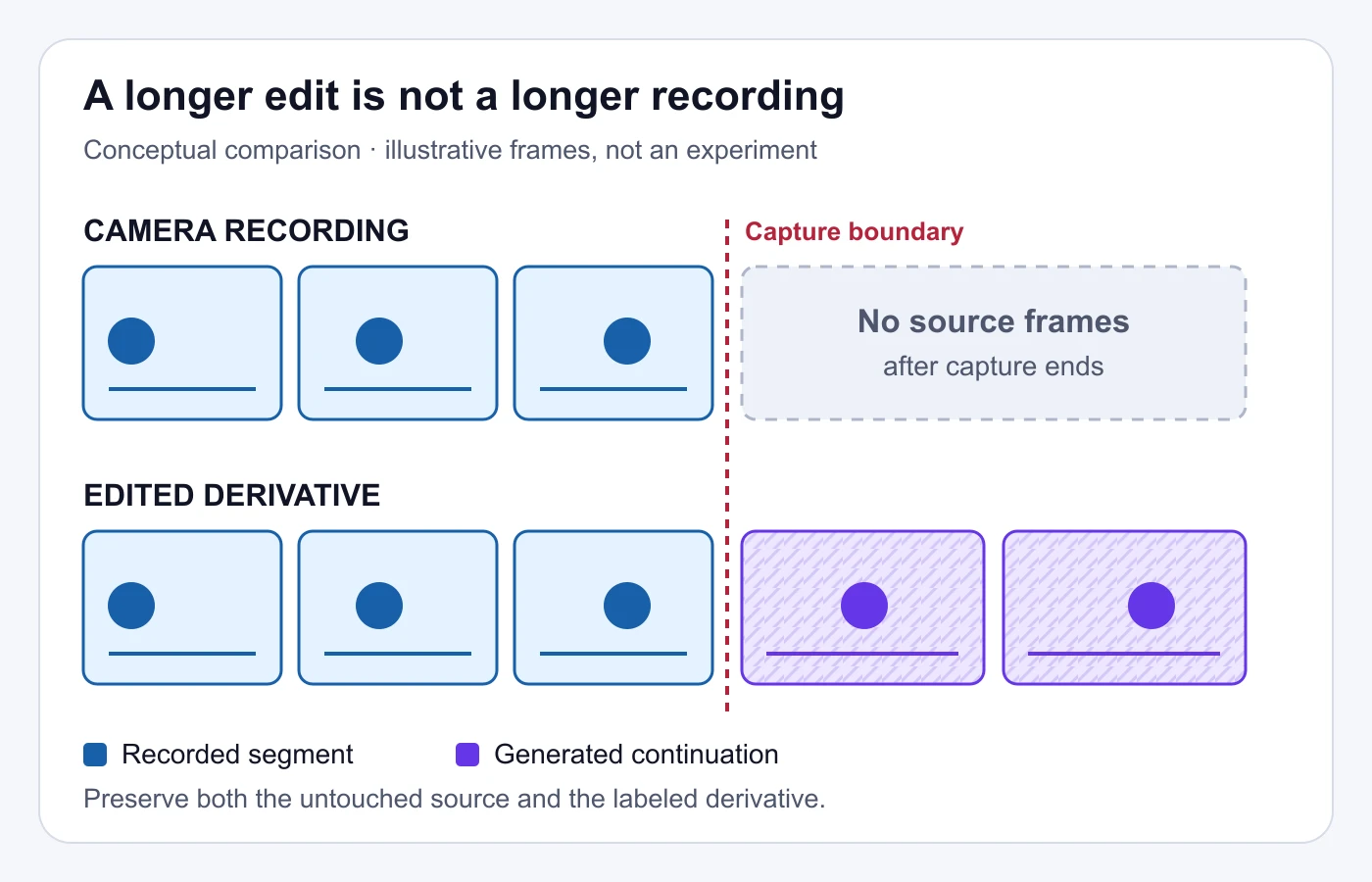
The original comparison illustration accompanies this distinction: one row stops at the camera boundary, while the edited derivative adds a separately marked continuation. The blank area after capture means no source frames are available in the hypothetical example. It does not mean a real experiment proved that a particular event failed to occur.
For your own project, write the source and derivative notes in language another reviewer can reproduce. Avoid “looks real” as the conclusion. A better record identifies which interval came from the source, which was generated, why it was used and what it must not be presented as proving.
Review motion, sound and continuity across the boundary
Play a short window containing the recorded edge and the extension. Review it in context before inspecting individual frames. A technically plausible still image may not explain the transition in movement or sound. Then examine the boundary more closely to locate the specific detail that caused concern.
Objects and contact
Choose a few meaningful objects to follow. In the cup example, track its outline, handle and contact point. Ask whether the same object persists rather than assuming that a similar color is enough. If the scene contains readable packaging, compare the identity of the text, not simply whether text-shaped marks remain present.
Use a narrow observation when you find a problem: “The handle’s shape changes in the added interval” is more useful than “the video is fake.” It tells an editor what to reject or investigate. Ordinary processing can also affect appearance, so a visual inconsistency alone should not become a confident claim about an unknown file’s generator.
Camera and subject movement
Observe the direction and pace of the camera and subject on both sides of the boundary. Look for an unexplained start, stop, change of direction or change in relative positions. Review a pan in relation to the scene rather than tracking only the frame edges: background objects provide useful reference points.
Do not turn this into a universal artifact checklist. A smooth movement can still be generated, and a real camera can move abruptly. When you own the project, the source-versus-generated record is stronger evidence than a guess based on motion. When you do not own it, keep the observation separate from the interpretation.
Ambient audio and implied events
Listen for changes in the background texture and for sounds that imply an action. A continued room sound is different from a new syllable, a new impact or a second person’s apparent response. Keep your dialogue interpretation within the actual recorded speech; the feature’s ambience function is not a way to discover words the microphone missed.
Compare audio review with the visible scene. If a generated sound suggests that an object moved again, ask whether that interpretation is part of your intended fiction or an unintended factual claim. Record the issue even if the sound is unobtrusive when heard without the picture.
Color and transitions
Review the extension under the same viewing conditions as the neighboring footage. Examine brightness, gradients and the transition into the next shot. Where delivery requirements are demanding, a tiny creative timing benefit may not justify an unresolved mismatch. The decision belongs to the actual project; do not accept it solely because the preview is attractive.
Make one final pass through the whole sequence after choosing a candidate. An extension that looks fine in isolation may alter pacing, emphasis or the relationship between shots. Those are editorial consequences even when there is no obvious visual defect.
Retain the original and describe the derivative honestly
Keep the untouched input, the project and the selected generated result distinguishable. Use names that identify their relationship instead of overwriting the source with a file labeled “final.” For a collaboration, explain which version a colleague should use for source comparison and which belongs in the intended creative edit.
A concise handoff note can say: this source supplied the recorded interval; this separate file contains the generated continuation; this project version uses that continuation for the stated purpose. Add any conversion or review concern that matters. Avoid including private media, account credentials or unnecessary personal information in public notes.
Our video provenance guide explains the broader task of reconstructing a version’s history. For an extension project, start with the chain you actually control. Keeping records now is simpler than asking a future reviewer to infer your edit from a compressed repost.
Where a compatible workflow supplies provenance, inspect what it actually records. The Content Credentials guide explains how to interpret recorded actions and validation without treating them as a universal truth badge. Do not assume every export or platform copy carries complete, frame-level disclosure.
Make public labeling match the use. A conceptual visualization needs a clear indication that the continuation is generated. A delivered creative project may also need precise handoff notes so another editor does not mistake it for a longer source take. Follow relevant current platform requirements rather than assuming one file name settles every disclosure question.
If you receive a clip with an unknown history, seek the stronger source before making a boundary claim. Ask for the original or a documented edit record where appropriate. Absence of that record does not establish that every frame was generated; it means that the exact production history remains incomplete.
When only the exported clip is available
Start a separate review record rather than reconstructing the editor’s intentions from appearance. Identify the version you received, describe the claim attached to it and list the evidence available for that claim. If you notice a transition, record its location and the observable change. Avoid naming it a Generative Extend boundary unless reliable production information supports that attribution.
If another source becomes available, align a distinctive action in both versions and inspect the surrounding interval. Check that you are comparing the same take rather than similar scenes. Note differences in cuts, speed, soundtrack and framing before interpreting a mismatch. An earlier version may clarify the edit, but it still needs an attributable history. Where that history remains uncertain, state the unresolved question instead of treating the cleaner-looking file as an untouched original.
Final extension-review checklist
Use this checklist after your source and boundary worksheet are complete. It is a review aid, not proof of authenticity or a substitute for current application documentation.
- The source edge was checked for unused recorded frames.
- The reason for adding material is specific and documented.
- The generated interval is identifiable inside the project and handoff notes.
- The scene’s intended use permits a synthetic continuation.
- Objects, contact and movement were reviewed across the boundary.
- The soundtrack does not accidentally imply unrecorded speech or events.
- Conversion warnings and delivery requirements were checked.
- An alternative edit remains available if the extension is unsuitable.
- The untouched source and selected derivative are retained separately.
- Unresolved concerns are stated rather than concealed by a polished result.
The strongest decision record distinguishes three conclusions: the extension serves the creative edit, its visible and audible behavior is acceptable for that edit, and it is described honestly. None of those conclusions means that missing real-world footage was recovered. Preserve that boundary even when the generated result is difficult to distinguish by appearance alone.
Know which frames were recorded.
Review the available video signals and retain the untouched source.
Questions about Generative Extend
Does extending a clip recreate what really happened?
No. A generated continuation is a new production ingredient, not a recovered observation. Preserve the actual recorded interval and keep any real-world claim within the evidence that interval supports.
Can Generative Extend finish a spoken sentence?
Adobe documents ambience and effects rather than dialogue extension. If a recording ends before the sentence finishes, retain that limitation instead of presenting additional speech as recovered audio.
How can I identify generated frames in my own project?
Use the application’s generated label and your source-versus-derivative notes. Document the interval and selected version. Do not rely solely on guessing where a visible artifact appears.
Is a smooth extension evidence that the clip is authentic?
No. Smoothness describes a presentation result. Source records, production history and external context address different questions. A visually coherent generated interval can still depict something the camera never recorded.
What if I cannot verify the clip’s original boundary?
Record the uncertainty and seek an untouched source or reliable edit record. You may observe a suspicious transition, but that alone does not identify its exact origin or establish that an entire clip is synthetic.
Sources and current feature guidance
- Generative Extend overview — Adobe Premiere documentation.
- Add frames using Generative Extend — Adobe Premiere documentation.
- Generative Extend FAQ — Adobe Premiere documentation.