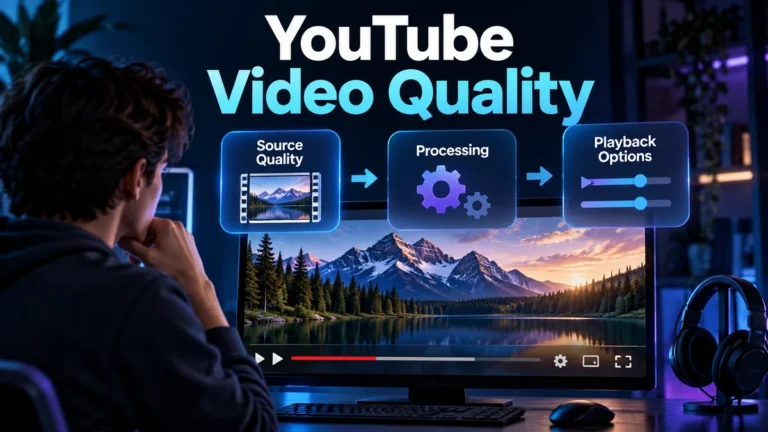
Why is my YouTube video blurry? Start by separating the file you uploaded from the stream you are watching. A new upload may initially offer only lower-quality playback while higher-resolution processing continues. Viewing settings and connection conditions can also change the stream. Compare the source and export, check available player quality, and change one viewing condition at a time before deciding that the upload is damaged.
This guide gives creators and viewers a reversible check sequence. It does not promise a processing deadline, a particular codec for every channel, or recovery of detail missing from the source. The walkthrough is fictional: no video was uploaded, timed, downloaded, or measured for this article. Its value is locating the uncertain stage rather than calling every soft picture a platform failure.
Identify which version looks blurry
There can be several versions between the camera and the screen: the recorded source, an edited export, the file selected for upload, a processed streaming version, and a screenshot of playback. Name the one you inspected. “My video is blurry” is a useful observation but does not identify where the difference first appeared.
If you are the creator, open the actual local file selected for upload and compare it with the relevant source or edit. Do not rely on the editing application’s preview alone. The exported file may differ from that preview, or you may have selected an earlier draft with a similar name. Confirming the input avoids repeatedly changing playback settings for a problem already present before upload.
If you are only a viewer, you may not have the uploaded original. Keep that limit visible. You can check the stream and viewing conditions, but cannot conclude that the source file was sharp merely because a thumbnail looks sharp. Ask an attributable creator for relevant source context when the distinction matters rather than reconstructing an original from a paused screen.
Compare the same scene moment at a meaningful size. A tiny preview can conceal soft detail that becomes obvious full screen. An extreme zoom can make ordinary limitations look dramatic. Record the viewing scale and the feature that matters: text readability, moving texture, a person’s outline, or the whole presentation. This gives the comparison a task rather than a vague preference.
A completed upload is not the end of quality processing
YouTube’s Low video quality after upload guidance says uploads are initially processed in low quality and higher-quality versions can become available later. Its processing factors include format, length, frame rate, quality, and traffic. That explains an important distinction: a watchable upload can exist before every intended quality option is ready.
Check the quality options on the actual watch page. Do not infer completion from a thumbnail, the fact that someone can play the clip, or an upload progress message. If the expected higher-quality option is not yet available on a fresh upload, processing is a relevant explanation to investigate before exporting another copy.
Do not turn the help page’s examples into a deadline for your own video. This article provides no fixed number of minutes or hours after which every upload must be sharp. Observe the actual status and consult the current official guidance when processing appears stuck. A guessed countdown is not a useful reason to delete a published page prematurely.
If release timing matters, allow time to inspect the intended viewing result before making promises to an audience. That is a practical preparation step, not a scheduling trick or a claim that one publication time improves video quality. The appropriate check is whether the relevant quality is actually available for the version you intend to share.
Available resolution and selected playback are different
A higher-quality version can be available without being the stream selected in your current session. YouTube’s video-quality help describes changes based on viewing conditions, including connection speed, screen or player size, source quality, and browser support. Check the current quality rather than assuming every viewer receives the same stream.
Use the quality control appropriate to your device to select an available higher-resolution option for a comparison, if the interface permits it. Note the setting and replay the same moment. This is a reversible viewing check, not a permanent export change. Some device or format combinations may not expose the same options; do not report a missing menu choice as proof that the original file was degraded.
Manual selection can use more data or make playback less comfortable on a constrained connection. Compare picture detail and playback behavior separately. A sharper paused moment accompanied by repeated buffering may indicate a different viewing tradeoff, not a repaired upload. Return to the appropriate normal viewing preference afterward if the check is inconvenient.
A larger player can reveal limits hidden in a small window. Keep the comparison consistent instead of placing a tiny original preview next to an enlarged stream. Likewise, do not interpret a device’s display dimensions as the resolution of the current stream. The size of the screen and the information in the selected video are different quantities.
Check viewing conditions one variable at a time
Keep the video, scene moment, and available selected quality fixed where possible. Then compare a relevant viewing condition, such as the same permitted video in another supported browser or on a stable connection. Record what changed. If you switch devices, connections, player size, and settings all at once, an improvement does not identify which change mattered.
Use an ordinary safe comparison rather than invasive system changes. Do not install an unknown “quality fixer,” disable security controls, or expose private media to a third-party repair site because one player looks soft. The sequence here can be performed with existing legitimate playback controls and the local files you are authorized to inspect.
Do not begin by resetting every application preference. A small scoped check gives more interpretable evidence. If one particular viewing environment behaves differently, use the relevant official support route for that environment. This article does not assert that your browser is defective or give undocumented device-specific remedies.
Keep uncertainty proportionate. A different-looking playback result can narrow the problem toward viewing conditions without proving the exact network or decoding cause. Write that narrower outcome and preserve the settings used. It is more useful than calling the channel “broken” on the basis of one session.
Resolution, bitrate, and actual detail are not synonyms
Resolution describes the output grid, not whether the source captured a readable small feature. A large grid can contain an already soft recording or an enlarged smaller input. Check the detail in the source before expecting an export setting or player option to establish information that was never visible there.
Bitrate concerns the data used for encoded video, while decoded appearance depends on the source and encoding choices as well. Do not treat a large file as a guarantee of clarity. A source with focus or motion limitations can still produce a large export. Conversely, different encoding workflows can produce different file sizes without making their outputs directly comparable from size alone.
YouTube publishes recommended upload encoding settings, including frame-rate, picture-format, and bitrate reference information. Consult the current page and its applicability for your workflow rather than copying one number into every export. This article does not reproduce a universal preset, promise a streaming codec, or claim that increased upload bitrate guarantees a particular result.
Repeated exports are not a good diagnostic substitute for a baseline. Retain the best source and compare the actual output from one documented change. If an earlier export already looks degraded, fix or investigate that stage before attributing every difference to YouTube. The compression-artifact guide covers visual degradation separately from this platform-check sequence.
Use a source-to-view worksheet
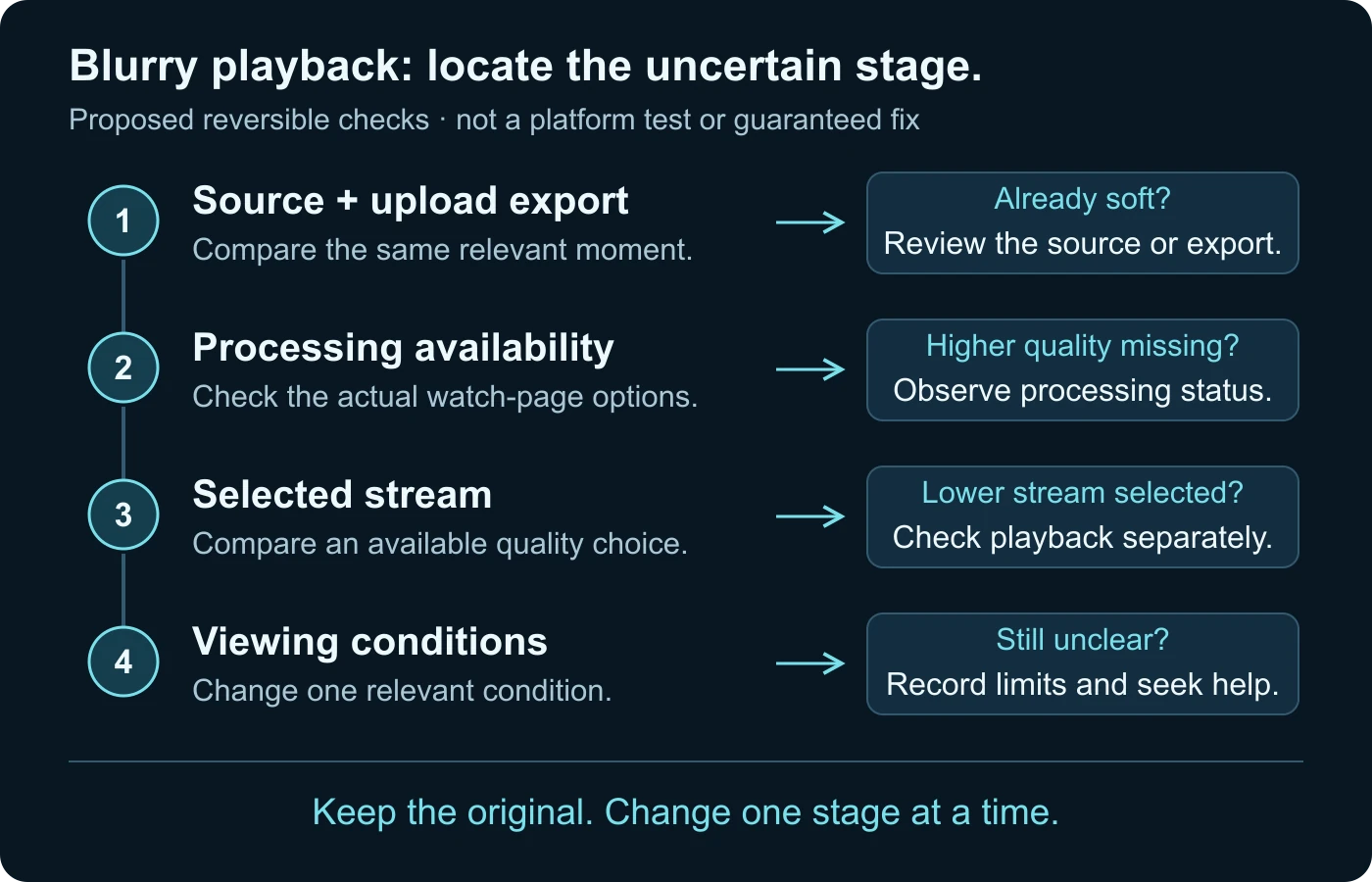
The original worksheet below identifies where an observation belongs. It is not a lab protocol or a YouTube diagnostic report. It helps a creator avoid changing the wrong stage and helps a viewer describe the limits of what they can inspect.
| Stage | Reversible check | What it cannot prove |
|---|---|---|
| Recorded source | Inspect the relevant moment at a stated scale. | That an absent feature can be restored by enlargement. |
| Upload export | Open the exact file selected for upload. | That the editing preview and export are identical. |
| Processing | Check available quality on the actual watch page. | A guaranteed completion time. |
| Selected stream | Compare an available quality option at the same moment. | That every viewer receives the same stream. |
| Viewing environment | Change one relevant condition and record it. | The cause of several simultaneous changes. |
Add a short observation to each stage you actually inspected. If the source is unavailable, write unavailable. If the higher-quality option was missing, record that rather than pretending you compared it. An incomplete but honest worksheet is better than a confident diagnosis assembled from assumptions.
Choose a few representative moments rather than only the most flattering frame. A static title, movement, and a detailed background may expose different limitations. These are proposed review locations, not test scenes with measured scores. Inspect the feature relevant to your audience’s purpose rather than turning the worksheet into a hunt for every visible imperfection.
Keep the record attached to the actual version. If you later upload a corrected export, identify it separately and repeat the relevant acceptance checks. A good-looking earlier preview cannot approve a new version under the same filename. This helps collaborators understand which result was observed and which change still needs review.
A fictional tutorial upload, checked without guessing
Imagine a creator shares a tutorial that includes small interface text and a moving hand demonstration. Shortly after upload, playback looks soft. This is a fictional workflow exercise; no real YouTube upload or timed processing result is claimed. The creator needs to find whether the text was already unclear, the export changed it, or the current stream is limited.
They first open the actual local export and locate the same title and demonstration moment. If the text is already hard to read there, the platform is not the first stage where the problem is visible. They compare the edit and source to decide which prior operation needs attention instead of waiting for processing to repair the file.
In another branch, the local export looks suitable at the intended viewing scale. The creator checks the watch page’s available quality options. If the desired higher-quality version is not yet available, they retain the source and observe processing rather than immediately replacing the upload. The exercise does not specify how long that will take.
Now suppose the higher-quality version is available, but the current stream uses a lower option. The creator selects the available quality for comparison and replays the same moment. A clearer result narrows the issue toward the viewing choice. It does not establish how every other person’s connection or device will behave.
Finally, suppose the issue persists in one viewing environment but not another under a documented comparison. The creator records that difference and uses the relevant support information. They do not change the upload’s metadata or repeatedly re-encode the source just because one session remains uncertain.
The branches show different appropriate next steps: investigate a visible source/export problem, allow observed processing to continue, check the selected stream, or narrow a viewing condition. None requires declaring that YouTube “destroyed” the file from a single soft screenshot. A useful conclusion identifies the stage supported by the comparison.
Check the audience task, not just the largest available number
For the fictional tutorial, the important question is whether viewers can follow the demonstrated action and read the relevant text at the intended size. A higher resolution label alone is not a complete acceptance check. The creator should compare the small text directly and consider whether the original composition made it too small even before upload.
If the title is readable only when viewed full screen on a large monitor, the creator should not describe it as universally clear on mobile. That is a presentation question, not necessarily an encoding failure. Keep content design and platform processing separate so a real readability problem is not hidden behind a technical label.
Likewise, a single paused frame may not describe a moving demonstration adequately. Watch the relevant interval and inspect whether the action remains understandable. This guide proposes that check but reports no measured result. The creator’s acceptance note should describe what they actually reviewed, not claim that a preset guaranteed every detail.
A screenshot is not the uploaded original
A screenshot records the displayed view in that session. It can include player scaling, selected stream quality, overlays, and the device’s display context. Do not use it as a direct measurement of the file that the creator uploaded. Keep the screenshot’s role clear when sending a support request or comparing versions.
If you have an authorized original and need a frame, select the relevant moment from that file instead of treating a streamed screenshot as its equivalent. The video frame extractor guide covers useful frame selection. This does not mean a local frame settles every timing or authenticity question; it simply identifies the copy being inspected.
Metadata can help describe source and export dimensions, duration, and available encoding fields. Those fields still need context. The video metadata guide explains why one timestamp or encoder label is not a complete history. Do not use a field from a local export to assert the exact quality selected in someone else’s player.
When waiting is reasonable and when an export needs review
Waiting is relevant when a new upload’s intended higher-quality option is not yet available and the local export has passed the relevant checks. Record the status you observed and revisit it through the watch page. Do not keep waiting for platform processing to recover a feature absent from the uploaded source.
An export needs review when the exact upload file already shows an unwanted difference or has the wrong dimensions, crop, or relevant content. Preserve it for comparison and return to the original workflow. Do not overwrite the best source with an experimental conversion. The corrected version should solve a stated problem and receive its own check.
Replacing or re-uploading a video can affect its publication context. Do not delete the current page merely to test a speculative preset. If you decide that a corrected upload is necessary, plan the change through the normal publishing workflow and keep the relevant source and version notes. This guide does not promise that re-uploading triggers a better codec or faster processing.
If the observation remains unresolved after the relevant checks, use the current official help route and describe it precisely: the source/export inspected, available quality, selected stream, device context, and affected moment. Avoid publishing private account details or unrelated logs in a public forum. A bounded report is more actionable than a broad claim that all uploads are blurry.
Do not turn softness into an AI verdict
Blur, lost texture, or a soft face can come from ordinary source and playback limitations. Those observations alone do not establish generation or manipulation. Compare the best available source before using a degraded stream for a consequential media conclusion.
YouTube’s production-disclosure system is a separate topic. The altered or synthetic content guide explains that label. A missing quality option is not an AI label, and an AI disclosure does not diagnose why playback looks soft.
Finish with a narrow statement about the stage you checked. The export was already soft, higher-quality processing was unavailable at the observed time, selected playback differed, or the viewing cause remains unresolved. Keep the original available and avoid claiming more than the comparison supports. That approach protects useful troubleshooting from becoming an unsupported accusation about the file or creator.
Questions about blurry playback
Why can a new upload look soft at first?
YouTube documents lower-quality initial processing and later availability of higher qualities. Check actual available quality rather than assume a deadline.
Does a high-resolution upload always play at that resolution?
No. Viewing conditions and the selected stream matter. Check the current quality in the relevant player.
Will a bigger bitrate repair an out-of-focus source?
No promise of recovered detail is justified. Inspect the actual source and export before changing encoding choices.
Can I diagnose the upload from a screenshot?
A screenshot shows that displayed session, not necessarily the original or highest available stream. Record the copy and viewing context.
Should I delete the video immediately and upload it again?
Not as the first diagnostic step. Check the exact source/export, processing and viewing conditions before making a publication change.
Does blurry playback prove AI manipulation?
No. Ordinary capture, encoding, processing, and viewing limitations can explain softness. Use appropriate source and media evidence for manipulation questions.
Official sources and exercise limits
- YouTube Help: Low video quality after upload — initial processing, variable timing and checking quality availability.
- YouTube Help: Change the quality of your video — viewing conditions and device-specific options.
- YouTube Help: Recommended upload encoding settings — current reference guidance; check applicability rather than assume a universal preset.
Official sources checked on 14 October 2026. The worksheet, tutorial scenario, and diagram are original teaching material. No platform upload, quality measurement, codec-allocation experiment, or timed processing test was performed.
Blur is not proof of manipulation.
Compare the source and check the video before drawing conclusions.