
Video bitrate is the amount of encoded video data used per second, usually expressed in kilobits or megabits per second. It influences storage and the information available to represent a scene, but it is not a complete quality score. Resolution, frame rate, codec, source quality, and encoder settings also matter when comparing two files.
This guide gives you a practical way to read bitrate, estimate file size, and compare versions of one source without assuming the largest file is always best. The worked arithmetic uses explicitly stated hypothetical values. The same-source review is a controlled reading exercise, not a claimed benchmark of a camera, encoder, or DetectVideo AI.
Bits per second in plain English
Think of bitrate as a data budget over time. A video stream averaging 4 megabits per second uses about four million bits for each second across the period being averaged. It does not mean that every frame has the same size, that every second looks equally detailed, or that the viewer receives exactly that rate at every moment.
A bit and a byte are different units. There are eight bits in a byte. Lowercase b commonly indicates bits, while uppercase B indicates bytes. That distinction matters when converting Mbps into megabytes of storage. Confusing the two makes an estimate eight times too large or too small before any audio or packaging is considered.
Also distinguish video bitrate from overall bitrate. A file may include video, audio, subtitles, and container information. A tool’s general section can summarize the whole file, while its video section describes one stream. If you compare the overall rate of one file with the video-only rate of another, you are not comparing the same quantity.
FFmpeg’s official codec documentation specifies bitrate options in bits per second and treats audio and video encoding settings separately. It also warns that option meaning can depend on the codec. Use that as a reminder to read a tool’s actual units and behavior instead of assuming that every export panel interprets an identically named setting in the same way. See FFmpeg’s codec options.
Bitrate, resolution, frame rate, and codec answer different questions
Resolution describes the dimensions of the decoded picture. Bitrate describes the rate of encoded data. Two files can both display a 1920-by-1080 picture while preserving different amounts of detail. The pixel grid alone does not tell you how much information survived the encoding process.
Frame rate adds a time dimension. More frames can require a different data allocation, but they do not automatically produce sharper individual frames. Motion, scene detail, noise, and the relationship among frames affect the encoding task. A mostly stationary presenter and a moving scene with water and foliage should not be treated as equally demanding just because their dimensions match.
The codec and encoder configuration also affect how that budget is used. Comparing different coding workflows by bitrate alone can be misleading. A lower-rate file may retain useful detail efficiently, while a higher-rate file may merely carry a poor-quality input through another export. There is no universal conversion from megabits per second to a defensible authenticity or usefulness rating.
For a fair first comparison, hold the source, dimensions, frame rate, codec, and relevant encoder settings constant. Then inspect the resulting versions at comparable scale. If you cannot hold those factors constant, record the differences and keep the conclusion narrower. “These two supplied copies look different” is valid; “the bitrate alone caused the difference” requires stronger control.
| Property | What it describes | What it cannot establish alone |
|---|---|---|
| Bitrate | Encoded data over time | Original detail, trustworthy source, or authenticity |
| Resolution | Decoded image dimensions | Whether those pixels contain sharp original information |
| Frame rate | Frames represented over time | Natural motion or an unaltered sequence |
| Codec and settings | How media is represented and encoded | A complete history of earlier processing |
Constant and variable bitrate
Constant bitrate, or CBR, aims to maintain a defined data rate. Variable bitrate, or VBR, allows the allocation to change while typically targeting an average or another specified constraint. These are rate-control approaches, not categories of authentic and manipulated video.
AWS MediaConvert’s documentation explains that its CBR mode uses the same bit allocation over time, while its VBR mode can allocate more data to complex parts. It also distinguishes a quality-defined variable mode whose output size adapts to content. Those descriptions are specific to the documented service; settings and exact behavior in another encoder need their own verification. Read AWS’s rate-control comparison.
For planning storage, the average rate is useful because total data accumulates over duration. For a particular difficult second, an average over the whole clip may conceal a local restriction. A file can spend relatively little data on an uncomplicated section and more on a demanding one. The average is not a map of which frame retained which detail.
Quality-targeted modes add another reason not to predict size from a single nominal setting. If the workflow chooses data according to the input’s complexity, two equally long exports can have different sizes without any hidden edit. Conversely, a fixed-size target does not guarantee identical visual quality across different scenes.
When someone supplies a clip, ask whether the rate shown is a target setting, a measured average, or a maximum. These are not interchangeable. A maximum is a cap, not an assertion that the stream continuously uses that much data. Write the field name in your notes so that another reviewer understands what the number represents.
File-size arithmetic with explicit assumptions
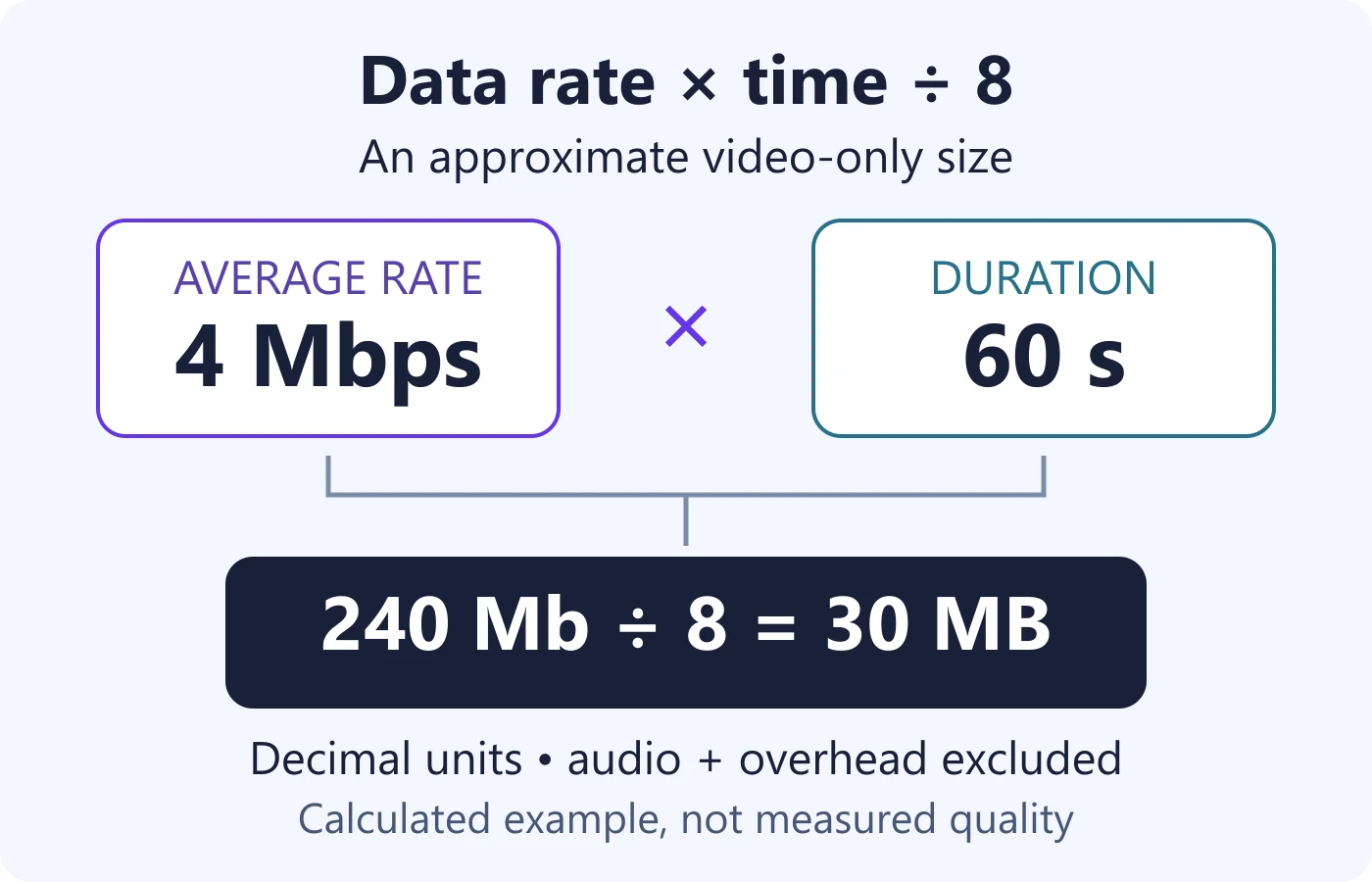
For a simple estimate, multiply average bitrate by duration, then divide by eight to convert bits into bytes. If bitrate is in decimal megabits per second and duration is in seconds, the result after division is decimal megabytes. The calculation estimates payload from the rates you included; container information and other packaging may add more.
Consider a hypothetical 60-second video at an average video bitrate of 4 Mbps, with no audio included in the first calculation. Four multiplied by sixty gives 240 megabits. Dividing by eight gives 30 MB of video payload. These are chosen arithmetic inputs, not a measured file or a recommended export setting.
Now add hypothetical audio averaging 128 kbps, which is 0.128 Mbps in decimal units. The combined rate is 4.128 Mbps. Over 60 seconds, that is 247.68 megabits, or 30.96 MB before container overhead. Keeping audio separate makes the estimate understandable and prevents a video-only setting from being mistaken for the whole-file size.
| Average video rate | Video only | With 128 kbps audio |
|---|---|---|
| 2 Mbps | 15 MB | 15.96 MB |
| 4 Mbps | 30 MB | 30.96 MB |
| 8 Mbps | 60 MB | 60.96 MB |
This table proves only the stated arithmetic. It does not predict which version will look acceptable, whether a platform will preserve those rates, or what a detector will conclude. Doubling an assumed average rate doubles the corresponding video payload for the same duration; it does not logically double sharpness or confidence.
File tools may display binary size units such as MiB instead of decimal MB. A mismatch between the estimate and the display can therefore have a simple unit explanation. Before investigating an unexplained difference, verify duration, whether audio was included, the rate’s averaging method, and the size unit used.
Work backward from a file size
The same relationship can estimate an overall average from a known file size and duration. Suppose a hypothetical file contains 45 decimal MB and plays for 90 seconds. Multiply 45 by eight to get 360 megabits, then divide by 90: the file’s overall average is approximately 4 Mbps. Because the starting size includes everything in the file, this result is not automatically the video stream’s own rate.
If a metadata tool reports a lower video rate, the arithmetic has not necessarily contradicted it. Audio and container data are part of the overall size, and reported duration or bitrate fields can have different scopes. Record those scopes before declaring the file inconsistent. A rounding difference also deserves a proportionate explanation rather than an authenticity accusation.
In your notes, write the calculation as an estimate with inputs: “45 MB, 90 seconds, decimal units, overall payload considered.” That short statement is reproducible. A bare “4 Mbps” loses the distinction between a calculated whole-file average and a measured stream field, making later comparisons less reliable.
A controlled same-source reading exercise
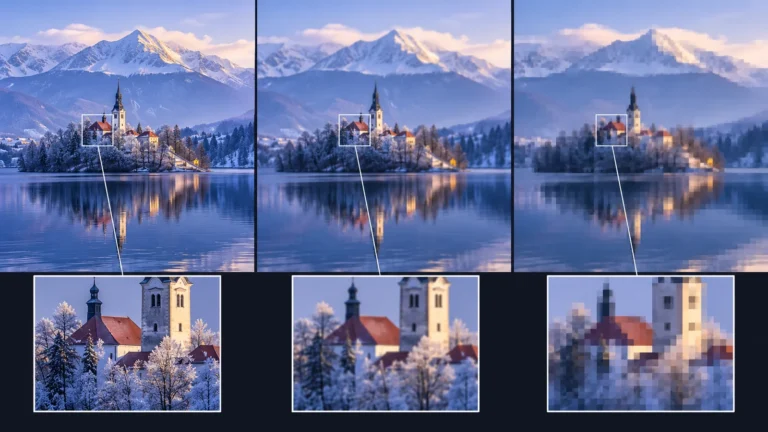
Imagine one original scene with a stationary sign, moving foliage, and a person walking through the frame. Three hypothetical copies are made from that same source with identical dimensions, frame rate, codec, and settings except for the bitrate target. The accompanying illustration represents progressively reduced detail; it is a conceptual comparison, not real encoder output or measured performance.
The stationary sign supplies a fine-detail check. The foliage supplies a complex moving-texture check. The walking person supplies motion and edge comparisons. Choosing several regions avoids treating one flattering frame as the whole result. It also gives the reader a way to separate general loss of detail from an anomaly confined to one object.
First view each version at normal playback speed and normal display size. Record which details remain useful for the actual task. If you need to read a sign, ask whether its original lettering is available. If you need to follow a person’s movement, ask whether the sequence remains clear enough. Do not invent letters or identity details from an ambiguous image.
Then inspect the same timestamp and crop in every copy. Keep the magnification consistent. Describe blur, broken edges, lost texture, or other visible differences without assigning an authenticity label. One version may be more suitable for a particular review even though all three depict the same underlying material.
A useful comparison record has six fields: source identifier, export differences, timestamp, selected region, visible observation, and limitation. For example, you could write “the sign is less readable in copy C at this timestamp; the original wording cannot be recovered from this copy.” That statement does not claim that the sign was fabricated.
If you conduct the exercise with your own authorized footage, preserve the original, record the encoder and version, and inspect the actual outputs. Do not assume the conceptual ordering will reproduce identically for every source. If you change resolution or frame rate as well, label the result a combined processing comparison rather than a bitrate-only experiment.
What re-encoding can remove
A higher-rate export cannot automatically restore information discarded in an earlier low-quality copy. If a sign has already become unreadable, carrying that blurred sign into a larger output does not recover verified lettering. More storage may represent the degraded input faithfully without making the input a stronger source.
This is especially relevant when a clip has moved through a social platform, download, crop, screen recording, and another upload. The final file reflects the available information after those stages. Its current bitrate describes the present representation, not the pristine detail or metadata that may have existed earlier.
The implications for analysis are different from ordinary viewing preferences. A visually pleasing enhancement might synthesize or alter detail, while an untouched but less attractive original preserves the material you actually need to inspect. Keep processed derivatives separate and do not analyze generated enhancement detail as if it were camera-recorded evidence.
The existing compression-artifacts guide explains how encoding damage can resemble manipulation clues. Here the narrower lesson is that bitrate comparisons need a version history. A small original can be a better reference than a large second-generation export, and the filename alone does not settle which one you received.
Upload guidance is not a universal quality threshold
YouTube publishes recommended upload rates that vary with resolution, frame rate, and SDR or HDR conditions. It describes those values as recommendations for uploads and separately specifies variable bitrate in its H.264 guidance. They should not be turned into a universal test of whether a received file is authentic, useful, or “good enough” for every analysis task. Check the current official upload recommendations.
Platform guidance answers a publishing-workflow question. Verification answers a different one: which available copy best preserves relevant evidence? You may not control the rate of a video someone else recorded, and uploading another version to a platform can introduce an additional processing path.
When creating a new export for ordinary delivery, consider the platform’s documented requirements and check the actual result. When preserving a source for analysis, retain the original separately. If a smaller transfer copy is necessary, identify it as a derivative and avoid silently replacing the source record with the transfer version.
Do not promise that one number prevents buffering or guarantees a particular playback quality. The delivery system, device, network, and selected representation also influence the viewing experience. Keep source encoding and the behavior of a streaming player conceptually separate when troubleshooting a blurry online clip.
Choosing a useful file for analysis
Begin with the earliest authorized source you can obtain. Keep its exact bytes, source context, and known processing history. Ask for an original transfer rather than a screenshot or a version re-exported solely to make the displayed bitrate larger. If only a repost is available, keep the limitation explicit.
Inspect the technical fields together: duration, video and audio streams, dimensions, frame rate, codec, and the bitrate field actually reported. The video metadata guide explains how to read container and stream information without turning an export tag into a claim about deception. It is the appropriate next step when you need tool-specific inspection rather than an arithmetic overview.
Define what evidence matters. A clip used to identify a location needs readable landmarks; a suspected edit may need timing and surrounding audio; a generated-video question may need several available signal groups. Better preservation helps, but no bitrate threshold independently guarantees that a specific question can be answered.
For consequential evidence, follow the separate authentication and preservation workflow. A file comparison should maintain the distinction between unchanged bytes, media processing, and the truth of the event. Bitrate is one property of the file, not a replacement for those evidence layers.
Quality myths and a practical review checklist
The most common mistake is equating higher bitrate with recovered original detail. Another is comparing the numbers without comparing the codecs or source versions. A third is assuming that identical resolution means identical evidence. These shortcuts are attractive because the fields are easy to read, but they omit the history and content that make a comparison meaningful.
Use this checklist before choosing or describing a copy:
- Identify whether the rate is video-only, audio-only, or overall.
- Record the units and whether the value is average, target, or maximum.
- Compare duration, resolution, frame rate, codec, and known processing history.
- Retain the strongest source separately from all export and enhancement versions.
- Inspect the same timestamps and regions at the same display scale.
- Describe what information is readable and what remains unavailable.
- Use payload arithmetic for size planning, not as a quality or authenticity score.
- When the source history is unknown, record uncertainty instead of assuming the largest file is the original.
For handoff to another reviewer, attach the source identifier and your comparison record rather than only a screenshot of the bitrate field. A colleague should be able to tell what was compared, which variables differed, and which conclusion the comparison supports. That makes the information useful even if they choose a different tool.
If a lower-quality copy leaves the media question unresolved, source tracing may help locate a better reference. The reverse video search guide covers that discovery task. A bitrate reading can tell you about the supplied copy; it cannot locate or recreate the original by itself.
Start with the clearest source.
Analyze the original video rather than a heavily recompressed copy. Review the available evidence with the clip’s source and processing context.
Questions about video bitrate
Does a higher bitrate always mean better quality?
No. It depends on the source, codec, settings, and task. A large re-export can preserve an already degraded input without recovering original detail.
Can two 1080p files have different detail?
Yes. The same decoded dimensions can contain different amounts of preserved information because their sources and processing differ.
Does the file-size formula include sound?
Only if the audio rate is included. Add the relevant average stream rates before multiplying by duration, and allow for container overhead.
Is maximum bitrate the same as average bitrate?
No. A cap describes a constraint; an average describes data over a period. Keep the field names when recording a comparison.
Can bitrate prove that a video is fake?
No. It describes encoded data rate. Authenticity requires source, content, and processing evidence appropriate to the question.
Sources used
- FFmpeg codec options: documented units and codec-dependent settings.
- AWS MediaConvert rate-control comparison: CBR, VBR, quality-defined allocation, and payload-size relationship.
- YouTube recommended upload encoding settings: platform-specific upload guidance, distinct from authenticity assessment.