
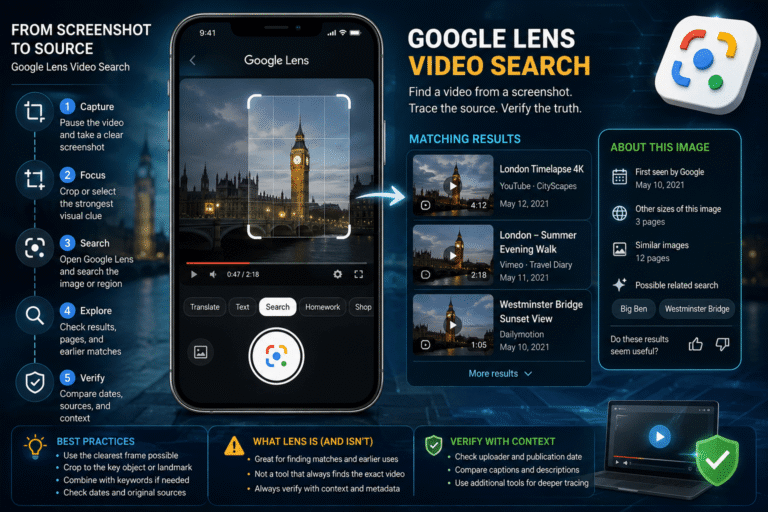
Google Lens video search means using a screenshot or extracted video frame as a visual search query to find matching pages, similar images, objects, landmarks, people in context, and earlier uses of the same visual. Google Lens does not need to understand the entire video at once. For source tracing, one strong frame can be enough to lead back to a longer clip, an earlier upload, a news article, an event page, or the original context.
The important limitation is that this is still image search applied to video frames. Google’s documented Lens workflow searches images, not a complete MP4 as a native reverse-video query. The practical method is therefore: choose a useful moment, turn it into a clean image, search the whole frame, refine the selected region, add contextual keywords when useful, then verify the pages Lens returns.
What Is Google Lens Video Search?
Google Lens video search is a practical workflow rather than a separate Google product mode. You use Google Lens to search a still image taken from a video.
According to Google’s current Search documentation, Lens results can include:
- search results for objects in the image
- similar images
- websites containing the image or a similar image
- AI-powered result experiences where available
Google also lets you refine the selected region and add words to the visual query. See the official Google Lens search-by-image instructions.
What Google Lens Can Find From a Video Screenshot
| Frame contains | Lens may help you find | Best next step |
|---|---|---|
| Distinctive scene | Matching thumbnails, reposts, articles or similar frames | Open results and look for a playable or longer video |
| Landmark or building | Place identification and related images | Confirm the location with maps and scene geometry |
| Logo or watermark | Publisher, broadcaster, creator or organization | Search the identified name directly |
| Readable text | Related pages, event names, products or entities | Add the wording to the search query |
| Public person plus context | Related appearances, interviews, speeches or event pages | Confirm the exact scene rather than relying on the face alone |
| Unique object | Product, vehicle, uniform, artwork or location clue | Crop tightly enough to isolate the useful object |
Google Lens Does Not Reverse Search the Whole Video File
Google’s current documented search-by-image workflow accepts an image upload, image URL, a web image, or a selected part of the screen. That means a video needs to be converted into one or more still-image queries.
This distinction matters because a video contains information that one frame cannot preserve:
- motion
- audio
- scene changes
- captions that appear later
- different camera angles
- identity changes across time
For difficult cases, search multiple frames rather than expecting one screenshot to represent the whole clip.
The Lens Query Ladder
Do not repeat the same search when the first result is weak. Change the visual query deliberately.
Step 1: Choose a Screenshot That Can Actually Be Searched
A good video screenshot contains information that distinguishes it from millions of generic images.
Strong candidates include:
- street signs
- event backdrops
- unusual architecture
- company or broadcaster logos
- distinctive vehicles
- clear public figures with contextual background
- uniforms or badges
- products or packaging
- unique scenery
A blurred close-up of a face against a blank wall may contain less searchable information than a wider frame showing the person, stage, microphone logo and event banner together.
If you have the video file, use the video frame extractor guide to select clean, varied frames rather than relying only on random screenshots.
Step 2: Remove Interface Noise Without Destroying Context
A screenshot from TikTok, Instagram, YouTube, X or another platform may contain:
- player controls
- comments
- profile UI
- black borders
- reaction-video panels
- large repost captions
Remove interface elements that dominate the image, but keep useful context. Cropping a person down to only a face can remove the press wall, building, clothing, microphone, or stage that would have made the source easy to identify.
Step 3: Search the Full Screenshot First
On desktop, Google’s documented workflow lets you go to Google, choose Search by image, and upload a file. You can also drag an image into the search box or search an image URL.
Start with the full clean screenshot.
This first query is designed to answer:
- Does the exact or near-exact composition already exist online?
- Is the frame used as a thumbnail?
- Does a page contain a similar version?
- Does Google recognize a distinctive object or place?
Do not assume the first highly ranked result is the original source. Ranking and chronology are different things.
Step 4: Change the Lens Selection Box
Google Lens lets you select a smaller region of an image. On mobile, Google’s current guidance explicitly recommends narrowing the selection when you want more specific results.
Use this when Lens focuses on the wrong object.
Good regional searches include:
- a storefront sign
- a stage logo
- a road sign
- a building facade
- a vehicle marking
- a distinctive item of clothing
- a product label
A region query changes the visual problem. Instead of asking Google to understand the whole scene, you are asking it to identify one high-information feature.
Step 5: Add Words to the Visual Search
Google Lens supports refining an image search with text. The wording and interface vary by platform, but the principle is powerful: combine visual evidence with a hypothesis.
Examples:
interviewconferenceBerlinearthquakepress conference- a company name
- a date or year
Use text to narrow a visual result, not to force your preferred answer.
Better: search the frame, notice a candidate conference logo, then add the conference name.
Weaker: assume the clip is from a specific event and add that event name before the image has produced any supporting clue.
How to Use Google Lens on a Paused Video in Chrome
Chrome offers a useful shortcut when the video is already open in a browser.
Google’s current Chrome documentation lets you use Search this tab with Google Lens or right-click and choose Google Lens, then select any part of the displayed page. Chrome sends the selected page image to Lens for the query. See the official Chrome Lens documentation.
For video verification:
- pause at a clear and distinctive moment
- hide player controls when possible
- open Google Lens for the tab
- drag over the useful video region
- inspect visual matches and web results
- change the selection if Lens focuses on an irrelevant object
This can be faster than saving a separate screenshot, although keeping the screenshot is useful when you want a reproducible investigation record.
How to Use Google Lens for a Video Screenshot on Android
Google’s Android workflow allows an image from the device to be selected through Lens, searched, cropped to a smaller region, and refined with an additional query.
A practical sequence is:
- save a screenshot from the video
- open Lens through the Google app or supported Chrome workflow
- select the saved screenshot
- adjust the selection box around the strongest visual clue
- review similar images and web results
- refine with text if necessary
The exact interface may vary by app version, device and region. Focus on the underlying functions rather than one button label.
How to Use Google Lens on iPhone or iPad
Google’s current iOS guidance supports choosing an image from the photo library in the Google app, Chrome or Safari-supported flow, selecting part of the image, and adding words to refine the search where available.
For a video screenshot, the logic is the same as Android: start broad, crop deliberately, then add context only when it improves the query.
What Results Should You Open?
The most visually similar result is not always the most useful result.
| Result type | Value for video source tracing |
|---|---|
| Page containing the same frame | High value. Check whether the page embeds or links to the full video. |
| Older news article | High value for date, location and event context. |
| Same thumbnail on multiple sites | Useful for distribution history, but may still be reposts. |
| Visually similar but different scene | Useful only if it identifies an object, landmark or entity. |
| Shopping or generic object result | Usually low value unless the object itself is the clue. |
How to Move From a Lens Match to the Actual Video
When Lens returns a matching still, open the page and determine what relationship it has to your clip.
Ask:
- Is there a playable video?
- Does the screenshot appear in that video?
- Is the clip longer than the version you started with?
- Who published it?
- When was it published?
- Does it credit another source?
- Is there an earlier linked version?
- Does the caption describe the same event?
This is where Google Lens stops being the answer and becomes a source-discovery lead.
The First Matching Page Is Not Automatically the Original
Search engines optimize result relevance, not forensic chain-of-custody reconstruction.
The first page may be:
- a popular repost
- a news article using a still
- a compilation
- a mirrored copy
- a later upload with better SEO
If your objective is to identify the earliest credible source, continue from the visual match into the reverse video search workflow.
Use “About This Image” When It Is Available
Google’s About this image feature can add chronological and contextual information to a visual search.
Depending on region and available data, Google says it may show:
- when Google may have first seen a similar version of the image
- other pages that use similar versions
- pages where the image appeared significantly earlier than other results
- information about how the image may have been made or edited
- available source or provenance details
See Google’s About this image documentation.
“First Seen by Google” Is Not the Recording Date
This is a critical limitation.
If About this image says Google first saw a similar image in 2022, that supports the conclusion that the visual was indexed by Google by approximately that period.
It does not automatically establish:
- the date the video was recorded
- the first time the video was uploaded anywhere
- the identity of the original camera operator
- the first private or unindexed use of the media
The strongest wording is:
“Google reports an earlier known indexed use of this image or a similar version.”
That can still be decisive when a viral post claims footage is from a new event.
Why Several Frames Beat One Perfect Screenshot
One frame creates one search route. Three visually different frames can create three independent routes.
For example:
- Frame A identifies the speaker.
- Frame B identifies the venue.
- Frame C finds an exact older thumbnail.
These results can converge on the same source even when no single query is conclusive.
AFP’s video-verification guidance recommends extracting keyframes and reverse searching them to trace the origin of video footage, especially when clips are reused out of context. See AFP’s guide to finding the source of a video.
Which Frames Should You Search First?
Use diversity rather than a fixed number.
A good first set might include:
- a wide establishing shot
- a frame with text or branding
- a clear person plus contextual background
- a distinctive object or landmark
- a later scene with different visual information
Five near-identical frames from the same second rarely give five times the value.
When a Face Search Gives Poor Results
A face can dominate the screenshot, causing Lens to focus on the person rather than the source video.
Try expanding the crop to include:
- microphone logos
- stage graphics
- podium design
- clothing
- people nearby
- room or outdoor context
The background often identifies the exact interview or event faster than the face alone.
When Text Inside the Screenshot Is More Valuable Than the Image
If the screenshot contains subtitles, a lower third, event title or visible quote, use it as a second search channel.
First let Lens inspect the frame. Then search a distinctive phrase as text, preferably with the identified person, organization or event when useful.
The combination of visual and textual evidence is particularly strong for:
- interviews
- press conferences
- news reports
- webinars
- podcasts
- livestream excerpts
Cropping Can Help, but It Can Also Destroy Evidence
A crop changes the query.
Crop more tightly when:
- Lens selects the wrong object
- a unique sign or logo is small
- large overlays obscure the original frame
- one landmark is the strongest clue
Keep more context when:
- the identity of the event matters
- several objects together make the scene unique
- the background is more informative than the subject
- you need to distinguish a real source from a reused portrait
Always preserve the uncropped screenshot separately.
Mirrored, Cropped and Re-encoded Video Can Reduce Matches
A repost may change the visual enough that an exact match becomes harder.
Common transformations include:
- horizontal mirroring
- vertical cropping
- zooming
- added captions
- reaction-video panels
- color filters
- low-bitrate re-encoding
If the whole frame fails, isolate a feature that survives those transformations, such as a landmark, logo, sign, product or unusual object.
What If Google Lens Finds Nothing Useful?
A failed Lens search is not evidence that the video is original, private, authentic or AI-generated.
Possible reasons include:
- the source page is not indexed
- the visual is new
- the source is private or deleted
- the frame is too generic
- the clip has been heavily cropped or altered
- compression removed important detail
- you selected the wrong moment
Try another frame, another crop, visible text, a watermark, the native platform search, or another visual-search engine.
The broader reverse image search for video guide compares the multi-engine approach. This dedicated page stays focused on getting more value from Google Lens itself.
Google Lens vs Reverse Video Search
| Google Lens frame search | Reverse video search workflow |
|---|---|
| Starts from one screenshot or image region | Uses multiple frames plus text, audio, account, date and platform clues |
| Excellent for visual discovery | Better for reconstructing the wider source chain |
| May find similar images or pages containing the frame | Traces longer versions, reposts and earlier uploads |
| Does not establish the original by itself | Aims to identify the strongest source history available |
Google Lens vs AI Video Detection
These tools answer different questions.
Google Lens: Where has this visual appeared, and what objects, pages or entities are related to it?
AI video detection: Does the media contain technical signals associated with AI generation or manipulation?
A video can be entirely real but reused from an old event. Lens may solve that problem without any AI detector.
A video can also be synthetic but too new to have visual matches. A failed Lens search does not make it authentic.
From Lens Match to Provenance
Once you find an earlier copy, you can start building a source history:
- record the matching page and publication date
- identify the publisher or account
- look for attribution to another source
- compare the frame, crop, watermark and video length
- follow earlier references where available
- separate first known occurrence from proven original capture
If the goal is to reconstruct that lineage in depth, continue with the video provenance guide.
Three Google Lens Video Search Cases
Case 1: Viral disaster clip
A screenshot is shared as today’s flood. The full-frame Lens search finds a similar still in an older news article. The article contains the same street and vehicles.
Finding: the visual existed before today’s event, so the current attribution is contradicted. The older article may still be a repost, so it is an earlier known source, not automatically the camera original.
Case 2: Cropped interview clip
The screenshot contains only a speaker and subtitles. Full-frame results are generic. Expanding the crop to include the podium and partial conference logo identifies an event page. Searching the speaker plus conference name then reveals the complete interview.
Finding: Lens generated the event candidate, while text search confirmed the full source.
Case 3: No exact frame match
A low-quality repost returns no identical images. Cropping a distinctive building produces location results. Searching that location with a phrase visible in the subtitles leads to a local news report containing a longer version.
Finding: Lens did not find the video directly, but it identified an entity that unlocked the source search.
The Result Confidence Model
A Practical Google Lens Video Search Workflow
- Define what you want to find. The full video, original source, event, location and earliest upload are different goals.
- Capture several useful frames. Choose visually different moments.
- Search the strongest full screenshot with Lens.
- Open useful web matches. Do not judge only from thumbnails.
- Change the Lens crop. Isolate a sign, logo, landmark or other strong clue.
- Add context words carefully. Use evidence generated by the image, not assumptions.
- Search another frame. Create a new route to the source.
- Use About this image when available. Look for earlier uses and contextual information.
- Trace backward from the match. Compare dates, attribution, length and publisher identity.
- State exactly what you found. Distinguish a visual match, earlier occurrence and confirmed source.
Where DetectVideo AI Fits
DetectVideo AI becomes relevant when finding the source does not resolve whether the video itself may be AI-generated, manipulated or otherwise forensically suspicious.
Google Lens is a discovery tool. It can connect a frame to indexed imagery, entities and pages. It does not provide a complete authenticity verdict for the video.
For a broader investigation that combines source, context, timing, place, provenance and technical media checks, use the video verification workflow.
Key Takeaway
Google Lens video search works best when you stop thinking of the screenshot as a picture and start treating it as a query.
Search the full frame first. Then change the query by selecting a stronger region, adding a carefully chosen word, or moving to a different moment in the video. Open the resulting pages and verify their relationship to the clip.
Lens can find a matching page, identify a landmark, reveal an earlier use or point toward a longer video. It cannot tell you automatically that the first result is the original, that the footage was recorded on the publication date, or that a video with no matches is authentic.
FAQ About Google Lens Video Search
Can Google Lens search a video?
Google Lens is documented as an image-search tool. For video source tracing, use a screenshot or extracted frame from the video as the Lens query.
How do I find a video from a screenshot with Google Lens?
Upload the screenshot to Google Lens, review matching and similar results, crop around distinctive clues, and open pages that may contain the same frame. Then verify whether those pages contain the full video or only a reused image.
Can Google Lens find the original video?
Sometimes it can lead to the original or a longer version, but a Lens match is not automatically the original source. Compare dates, publishers, attribution, video length and earlier references.
Can I use Google Lens on a paused YouTube video?
Yes. In Chrome, you can pause the video and use Google Lens on the visible page area. You can also save a screenshot and upload it through Google’s search-by-image workflow.
What is the best screenshot for Google Lens video search?
Choose a clear frame with distinctive information such as a sign, logo, landmark, event background, public person with context, unusual object or recognizable location.
Should I crop the screenshot before using Google Lens?
Search the full frame first when possible. Then crop or adjust the Lens selection around the strongest clue if the initial results are too broad or focus on the wrong object.
What does About this image tell me?
Where available, it can show when Google may have first seen a similar image, other pages using similar versions, earlier uses and some available information about how the image was made or edited.
Does the first-seen date in Google prove when the video was recorded?
No. It indicates when Google may have encountered the image or a similar version. The actual video may have been recorded or published earlier.
Why does Google Lens find nothing for my video screenshot?
The source may be unindexed, private, new, deleted, heavily cropped or visually generic. Try another frame, another crop, visible text, a watermark or a broader reverse-video search workflow.
Can Google Lens tell if a video is AI-generated?
Google Lens can provide visual-search and contextual results, but source discovery is different from AI video detection. A lack of visual matches is not evidence that a video is authentic.