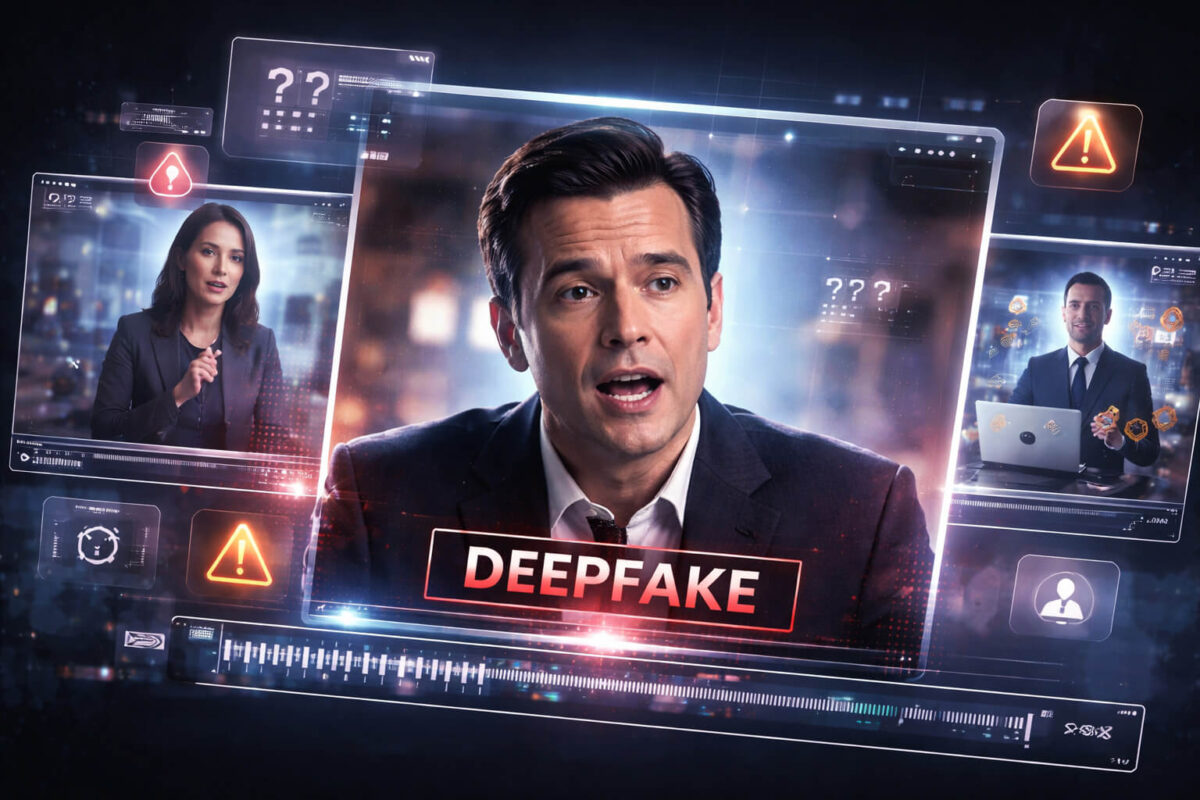

Pika-style clips are popping up everywhere: social feeds, ads, “behind the scenes” posts, and even videos shared as “proof” of something that happened. Many of them look surprisingly convincing at first glance, which is exactly the point. If you want a reliable way to decide whether a clip is likely generated, edited, or genuine, you need a process that is quick, repeatable, and grounded in both visual evidence and context.
This guide gives you that process. You will learn the fastest checks that expose common generation artifacts, the deeper frame-by-frame clues that confirm your suspicion, and the simple verification steps that prove where a clip really came from. You will also see when tools like Detect AI Video can help, and how to avoid the biggest mistake people make: trusting a single signal as “proof.”
Why “Pika AI video” feels real so quickly
A major reason Pika-generated clips can fool people is that they are designed to match the rhythm of modern online video: short, punchy, visually rich, and often paired with persuasive audio. When a video is only 5–15 seconds, your brain fills in missing details. You notice the main subject, not the subtle physics errors happening in the background.
That is why the best approach is not “stare harder.” It is “look smarter,” using a simple scan order that prioritizes the areas where generation fails most often.
What counts as a Pika AI video (and what does not)
When people say “Pika AI video,” they often mean one of these scenarios:
- Text-to-video: a clip created from a prompt.
- Image-to-video: a still image animated into motion.
- Video-to-video: a real clip stylized, altered, or extended.
- Hybrid edits: real footage plus AI-generated inserts (backgrounds, objects, faces, or motion).
What does not automatically count as a generated clip?
- Simple trimming, color grading, subtitles, or standard transitions.
- Basic stabilization or noise reduction.
- A real clip that looks “too clean” because it was shot well.
Your goal is not to label everything as AI. Your goal is to decide whether the clip is trustworthy for the claim being made.
The 60-second checklist (fastest way to decide)
If you only have one minute, scan in this order:
Motion realism
Look for “floaty” movement. In generated clips, motion can feel smooth but not physical. Objects drift, bodies glide, or the camera moves in a way that does not match handheld or cinematic rigs.
Texture and detail stability
Generated video often struggles to keep tiny details consistent across frames. Watch for flicker in fabric textures, skin pores, hair strands, and background patterns.
Lighting and shadows
Check whether shadows “belong” to the light source. In AI video, shadows can jump, soften randomly, or detach from objects.
Edges and geometry
Look at outlines of faces, glasses, fingers, and thin objects. AI can warp boundaries as things move.
Audio and lip movement
If speech exists, check whether lip shapes match phonemes. Even strong models still slip when the head turns or the mouth moves quickly. If you want a deeper approach here, your AI lip sync article is the perfect internal companion.
Context and source
Before you decide, ask: Who posted this first? Is there a longer version? Is it part of a trend? Context verification often beats pixel-peeping.
If the clip fails two or three checks, treat it as suspicious and move to deeper analysis.
The “Pika look” (common artifacts you can spot fast)
AI generation patterns change over time, but several artifacts remain common, especially in short viral clips.
Unreal camera movement and “impossible” shots
Many generated clips mimic cinematic motion, but the camera behaves like it has no weight. It may swoop through tight spaces, accelerate smoothly without inertia, or move as if it is floating on rails even when the scene suggests handheld.
What to do: pause during quick pans. Real footage has motion blur that matches speed and sensor behavior. Generated blur can look smeared or inconsistent.
Background warping and unstable geometry
Look beyond the main subject. Backgrounds can “breathe” or subtly morph. Straight lines curve. Buildings shift. Tiles and bricks slide.
What to do: pick one object in the background and track it for 2–3 seconds. If it changes shape while nothing touches it, you have a strong clue.
Flicker, shimmer, and “detail popping”
AI sometimes rebuilds details every frame. That causes micro-flicker in hair, skin, fabric, leaves, and reflective surfaces. The clip may look sharp, but the sharpness is unstable.
What to do: watch at 0.75 speed or frame-by-frame. Flicker becomes obvious.
Hands, jewelry, and thin objects behaving oddly
Even when faces look good, hands can betray generation. Fingers may change length, nails appear and disappear, rings slide, or a hand blends into the background.
What to do: look at grasping motions, pointing, waving, and fast gestures. Thin objects like strings, wires, and eyeglass arms are also high-risk.
Text and logos that mutate
If the clip contains signage, UI elements, or brand logos, watch them closely. AI can produce “almost letters” that wobble, reshape, or change spacing.
What to do: pause on any readable element. If it changes between frames, it is a strong indicator of generation or heavy manipulation.
Frame-by-frame checks that confirm your suspicion
Once the 60-second checklist raises suspicion, shift to precision.
Where to pause
Pause in moments where AI is under pressure:
- Fast motion
- Sudden lighting changes
- Crowd scenes
- Reflections (glass, mirrors, water)
- Thin objects in motion (hair, straps, cords)
- Side profiles and head turns
What to zoom in on
Zoom on small areas that reveal synthetic rendering:
- Teeth edges and tongue movement
- Eyelids and eye highlights
- Hairline and flyaways
- Earrings, necklaces, and watch faces
- Shirt collars and fabric folds
- The boundary between a subject and the background
The “two-frame compare” trick
Pick a single detail (like a necklace clasp or a shirt seam). Compare two frames one second apart. In real video, the detail remains the same object in a different position. In generated video, it may become a similar but different object.
This is especially useful for identifying clips that were generated, then lightly edited to look “more real.”
Audio traps (when sound makes a fake clip feel real)
Audio is powerful persuasion. A clean voiceover can make any visuals feel credible.
Clean audio is not proof
A clip can be AI-generated and paired with a real voiceover. Or a real clip can be paired with synthetic audio. That is why audio quality alone is not evidence.
Voice generation red flags
If the clip includes a speaking voice, listen for:
- Slight changes in tone mid-sentence
- Unnatural breathing timing
- Missing mouth noises and consonant texture
- Overly consistent volume (like a studio voice) in a chaotic scene
If you suspect voice manipulation, you should naturally link to voice deepfake or voice clone scam based on what your blog already covers.
Context verification (often the strongest proof)
Even the best visual analysis is weaker than source verification. A lot of viral AI clips are “true-looking” because people do not check where they started.
Find the first upload
Search for earlier posts of the same clip. The first upload often contains:
- A caption that reveals it was generated
- A creator watermark or handle
- A longer version showing AI transitions
- Comments admitting it is synthetic
Compare versions
If multiple versions exist, compare:
- Cropping changes
- Added overlays
- Reposted audio
- Removed watermarks
These patterns often signal a clip traveling from “creative content” to “misleading content.”
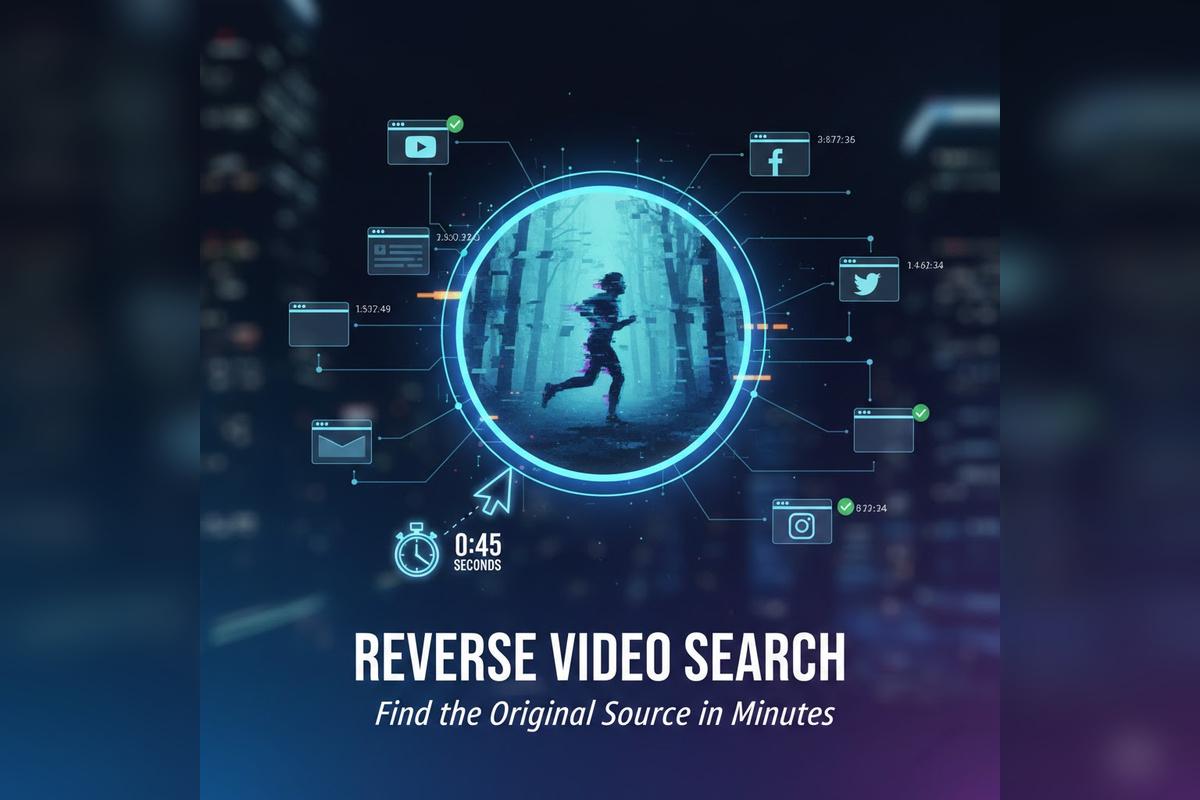
Reverse-search key frames
Grab a clear frame and reverse-search it. If the frame or scene appears earlier in a different context, you may be looking at a repost or a reframed story.
Verify the claim, not just the clip
Many “fake video” problems are not about generation. They are about miscaptioning. A real clip can be used to support a false claim.
That is why internal linking to news verification makes sense in this article when you talk about viral claims.
How tools help (and how to use them correctly)
Tools are useful when they are used as part of a workflow, not as a verdict machine.
What an AI detector can do
A good AI video detector can:
- Flag patterns consistent with synthetic generation
- Highlight suspicious segments
- Provide confidence signals that guide your manual review
What it cannot do
No tool can “prove” a clip is fake in isolation, especially after compression, edits, cropping, or reposting. Tools can also produce false positives on heavily edited real footage.
The right way to use Detect Video AI
Use Detect AI Video as an extra layer:
- Run a scan.
- Note which segments are flagged.
- Review those moments frame-by-frame using the checklist.
- Verify origin using context steps.
If your site has a dedicated tool page, mention it once naturally as the practical next step: upload the clip, check flagged moments, then confirm with source validation.
Real-world scenarios (what to check first)
Different types of Pika-generated clips fail in different ways.
“Too perfect” product or lifestyle clips
These often have:
- Unreal reflections
- Smooth but weightless object motion
- Textures that shimmer (wood grain, fabric)
First check: reflections and background geometry.
Celebrity-style clips
Even if your main celebrity deepfake article focuses on faces, “Pika-like” celebrity clips often fail in:
- Teeth and mouth motion
- Ear and hairline consistency
- Lighting mismatch on the face
First check: mouth, eyes, and the boundary of the face with the background.
Scam-style ads
These clips can combine:
- Real footage
- AI-generated voiceover
- AI inserts (product, logo, background)
First check: claims, source, and CTA behavior. Then verify with scam videos guidance and run a tool check.
What to do after you suspect a clip is generated
If you are about to share
Pause and verify. If you cannot confirm origin, share it as “unverified” or do not share it at all.
If the clip is trying to sell you something
Treat it as high risk. Scams often use convincing clips to create urgency. Check the domain, reviews, and whether the “brand” exists outside that video.
If the clip involves reputational harm
If it targets a person or business, do not amplify it. Save evidence, document the source URL, and report if necessary.
If you need stronger proof
Look for provenance and disclosure signals. If a clip includes Content Credentials or C2PA metadata, you can sometimes confirm edits and origin claims. If those are missing, do not treat that as proof either, but it is useful context.
Common mistakes people make when spotting Pika AI video
Mistake: only checking faces
Faces can look convincing. Hands, reflections, text, and background geometry often reveal the truth.
Mistake: assuming “HD means real”
AI video can be very sharp. Compression artifacts can also hide synthetic artifacts.
Mistake: ignoring the source
Many AI clips are labeled by the original creator. Reposts remove that context.
Mistake: treating one artifact as definitive proof
One weird frame can happen in real video too. You want a pattern: multiple issues, consistent across frames, plus context mismatch.
A quick decision flow you can reuse
If you want a repeatable process, use this:
- Scan motion, details, lighting, edges.
- Check hands, text, reflections.
- Verify source and earliest upload.
- Use Detect AI Video for an extra signal and flagged timestamps.
- Decide: verified, likely synthetic, or unknown.
Clarity Note: AI video is evolving fast
AI video quality is improving. That means your verification process needs to rely more on structured checks and provenance, and less on “I have a gut feeling.”
If you follow the checklist above, you will catch most common Pika-style generation signs quickly, and you will avoid overconfidence when the evidence is weak.
Practical Takeaway: Fast Verdict, Better Proof
Most Pika AI video clips fail in the same places: unstable details, unnatural motion, inconsistent lighting, and background warping. Start with a 60-second scan, then confirm with frame-by-frame checks and source verification. When the stakes are high, use Detect AI Video to flag suspicious segments faster, then rely on context and cross-checking to make the final call.
FAQ
What is a Pika AI video?
A Pika AI video is typically a clip generated or heavily transformed using AI video tools, often from text prompts, images, or edited footage. It may look realistic but often shows motion or detail inconsistencies.
Can a Pika AI video look completely real?
Some clips can look very convincing, especially when they are short and heavily compressed by social platforms. That is why you should combine visual checks with source verification and tool-based signals.
What is the fastest sign a clip was AI-generated?
Unnatural motion and unstable fine details are often the fastest clues. Watch for background warping, shimmer in textures, and inconsistent shadows.
Are watermarks reliable proof?
Not always. Some creators remove watermarks, and some platforms add overlays. A missing watermark does not prove a clip is real.
Do AI detectors always work?
No. Detectors can help flag likely synthetic segments, but edits, compression, or mixed real-and-AI footage can reduce accuracy. Treat detectors as one signal, not a verdict.
How should I use Detect AI Video for a Pika AI video?
Use Detect AI Video to scan the clip and identify suspicious timestamps, then verify those moments with the checklist and confirm the clip’s origin through source research.
What if the video is real but the caption is fake?
That is very common. Verify the claim separately by finding the original upload and checking when and where the footage first appeared. This is where news verification habits matter most.